

09 August 1404 pm 08:08
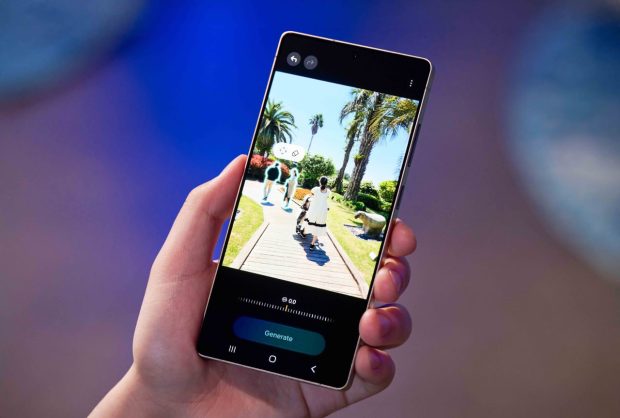
A new security update has been released with the improvement of existing capabilities and the addition of new features for the Samsung Galaxy.
Missing or stealing a mobile phone, not just a simple financial loss; Rather, by creating a sense of insecurity and anxiety, it can affect people’s personal and professional life. In today’s world, when the smartphone has become a second human memory, losing it means losing a set of vital information including business and educational documents, personal images, audiences and access to bank accounts; A problem that can have consequences beyond a common damage.
Following raising concerns about smartphone theft, Samsung has urged Galaxy Series users to enable new anti -theft capabilities recently released in software updates. These new features are part of Samsung’s clever and security approach to protecting users’ personal data in critical conditions and allow remote control of the device, even if it is shut down; The action that illustrates the brand’s commitment to enhance the safety and calm level of its users.
Samsung has just released the new security update of the One UI 7 UI; Updates that focus on increasing safety include improving previous capabilities and adding new features such as protecting theft and preventing unauthorized access to user information. These security features were initially unveiled at the same time as the Galaxy S25 series unveiled in February and will be gradually available for a broader range of Galaxy devices this year.
Samsung’s new capabilities protection
In order to improve the security of users, Samsung has introduced new updates whose main focus is on protecting more personal information when stolen. Among these updates, Theft Protection feature appears more prominent than others; A multilayer set of security tools specifically designed to prevent unauthorized access to users’ data in critical situations and reflects Samsung’s serious approach to privacy.
The “protectiveness of theft” that Samsung has introduced in the form of one UI 7 is based on standard Android security measures; Measures that perform effective in common theft scenarios, such as when the burglar does not have access to the PIN code. However, Samsung has passed this update and offered more advanced security layers to counter more complex situations, including cases where user login information is likely to be disclosed. These measures provide a new level of protection against security threats.
Users of the Samsung Galaxy phones can now significantly increase their device’s protection against more sophisticated theft by activating a set of modern security capabilities, including Identity Check. Using smart algorithms, these capabilities automatically identify and respond to suspicious activities to keep the device’s original control over the critical moments, while maintaining the security of personal information.
Among the updated capabilities in the theft are the following:
- Theft Detection Lock feature is one of Samsung’s new security features that, relying on machine learning technology, is capable of identifying abnormal and sudden movements related to physical theft, such as capturing the phone. The system immediately locks the screen as soon as it detects such patterns to prevent any unauthorized access to device information and maintain user security in critical moments.
- Offline Device Lock feature is another Samsung new security tactic designed to protect the device in situations where the handset is not connected to the network for a long time. In such a case, the system automatically locks the screen to prevent unauthorized access to user information even if it is offline.
- The Remote Lock feature allows users to lock their device remotely if the phone is stolen only using a phone number and a quick approval step. This feature not only blocks the robber’s access to personal information, but also provides the user with tools for recapturing account control and using more options to recover the device; An efficient solution to maintain security even in critical situations.
The new anti -theft capabilities provided in the Samsung One UI 7 interface include:
- The Identity Check feature is activated when the user is in anonymous positions such as connecting to a new WiFi network or relocation. This feature, along with the “safe place” feature, intelligently prevents unauthorized changes in the phone’s security settings. Especially when the robber has access to the PIN code, biometric authentication is required to prevent unauthorized access and change sensitive settings and maintain the security of the device.
- The “Security Delay” capability (Security Delay “comes in suspicious cases, especially when trying to change biometric information such as fingerprints or face recognition. This feature enables the user to lock the stolen phone and prevent robbers from accessing personal information through other connected devices, such as laptops or tablets. This will keep the device security even in critical situations.
Updated capabilities of Samsung’s anti -theft are now available for previous flagship devices, including the Galaxy S 2, Zed Fold 6, Zed Flip 6, Zed Fold 5, Zed Flip 5, as well as the S23 and S22 series. These capabilities are also expected to be gradually offered for more Samsung Galaxy phones in future updates so that all users can benefit from advanced security features.
Measures to be taken when Samsung’s Galaxy phone is lost or stolen
Lock Samsung Galaxy Remote:
- Go to the Samsung Find service using your Samsung account.
- In the left side of the screen, select your phone, and then in the details section of the device, click on the missing or Lost Mode option.
- Create a PIN code to unlock the phone if it is recovered and re -confirm it.
- If you wish you can add an emergency contact and the desired message displayed on the lock screen; But it is suggested that you do not do this to prevent your personal information from sharing.
- Select the Lock or Lock button and confirm your Samsung account to enable the missing mode.
- If you recover the device, you will be able to unlock the device using the PIN code created when activating the missing mode.
Remove Samsung Galaxy Device Remote:
- Log in to the Samsung Find website.
- After selecting the phone you want to clean, select the data deletion or Erase Data.
- Confirm your Samsung account information.
- After reviewing the displayed information, click or Erase to confirm.
- All information on your phone, including Samsung Pay information, is permanently deleted and cannot be recovered.
By doing this, your phone goes back to factory settings and will no longer be able to track or control through Samsung Find. So regularly back up your information in the cloud so that you can recover them on your new device if necessary.
Change the password of Samsung or Google Accounts Remote:
- We recommend changing the password of your Samsung and Google Accounts or any account that is connected to your device through the relevant websites.
- After changing the password, you will exit all the devices connected to the account, except for the device you are logged in.
- This will prevent unauthorized access to connected capabilities and protects your personal information.
Tracking Samsung Galaxy Devices:
If your device is turned on and connected to the WiFi or mobile data network, its latest known location will be displayed on the map. Do the following steps to this purpose:
- Log in to the Samsung Find website.
- Log in to your Samsung account with your device.
- If multiple devices are connected to your account, all of them are displayed; So select your desired device for tracking.
Other capabilities for remote control
- The Ring feature allows users to sound even when the device is in silence or vibration. This feature is especially useful when the phone is missing or hidden in a place and allows it to find the device easily.
- “Extending Battery Life” by enabling energy -saving settings allows users to use their phone longer and thus increase the chance of recovering the device in emergencies. This feature is especially useful when you need an extra time to find the stolen phone.
- The “position tracking” feature allows users to track their phone’s location instantly. By activating this feature, the phone’s position is updated once every 15 minutes until the tracking stops. This feature is very efficient when the phone is lost or stolen and helps the user easily identify the exact location of the device.
Other ways to track Samsung Galaxy devices
If your cellphone is lost or stolen, users can also use other Samsung wearable devices to find their phone. In addition, if the Galaxy Watch or Galaxy Buds is lost, Samsung has provided special features that allow users to easily find and maintain these devices.
Find the phone using the Galaxy Watch watch
To find your phone using the Samsung Galaxy Watch smartwatch, your watch must have a Wearos 5 or higher operating system. To do this, do the following steps:
- At the top of the Galaxy Watch screen, pull down to open the quick settings section.
- Select the icon of finding my phone or Find My Phone.
- Click the starting or start option to start the search process and the ringtone of your phone sounds.
- After finding the phone, your phone’s ringtone will be stopped by selecting the stop option or icon X on the phone.
Find the Galaxy Watch watch

- Open the Galaxy Wearable app on your phone.
- Select the option to find my watch (find my band) or find my device (find my gear) depending on the type of your device.
- If the connection is made via Bluetooth, hit the start or start option.
- Your watch (depending on the device model) will start shaking or playing sound.
- After finding the clock, tap the X icon in your watch or stop on the phone.
Find Galaxy Badds Wireless Headphones
- Enter the Galaxy Wearable app on your phone or tablet.
- Click the option to find my headphones or Find My Earbuds.
- Select the start or start option. Your headphones begin to beep and gradually increase its volume for three minutes.
- After finding your headphones, tap the stop or stop option.
How to use the service to find my device on Google
- Google’s “Finding My Device” service is by default through the Google Play Services on the Android operating system.
- You need a Google account to use this service.
- With this feature you can set up a new password, sound your device, display a message, lock your device, erase its data, and access other features.
Call the police or mobile service provider
- After completing the above steps, be sure to report your missing or stolen to the police and file your complaint.
- Contact your mobile service provider to block your contract and prevent unauthorized use.
In the end, it is noteworthy that to protect your device more, we suggest you provide an insurance that covers the damage caused by sudden damage, loss or stolen.
(tagstotranslate) Security update (T) One UI (T) UI (T) theft (T) theft of the phone (T) Missing the phone

RCO NEWS