



In many cases, especially when working with data, forms or tools like Excel, we need to convert dates into solar to match the country’s official calendar. In many data -related projects, the two main tools, Excel and Google Sheets, are widely used, and users often need to convert the dates between different calendars, especially AD and solar. Earlier Conversion We reviewed. Now we are going to go to the second tool, Google Sheet, and the method Transform History Explain the solar history to the solar history on Google Sheet.

Convert the solar to Google Sheet
Before converting solar history to Google Sheet, we are going to explain the conversion of the solar date on Google Sheet. This process is not a difficult task. Especially when we’ve put together the codes to do this. Just follow the steps below so that you can turn your desired date from AD.
- Run Google Sheet and open your desired page.
- Now click on the Extension option from the top of the page.
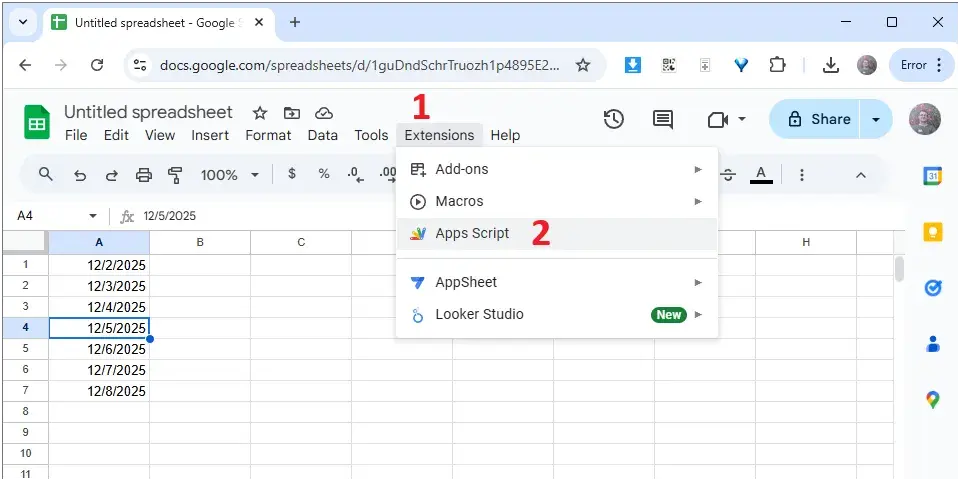
- At this point, tap the Scripts Apps option.
- You see a new tab opens in your browser.
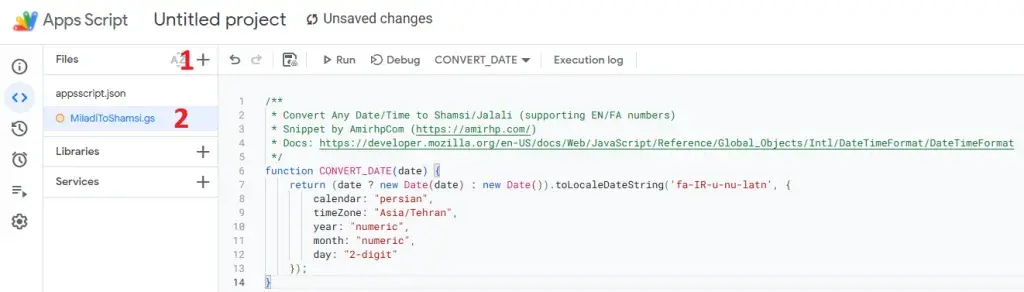
- Click on the “+” icon on the open browser page and then select Script.
- For the created file, select a name, such as Miladitoshamsi.
- Copy the following script code and place it in the right -hand box.
/**
* Convert Any Date/Time to Shamsi/Jalali (Supporting En/Fa Numbers)
* Snippet by Hamid (
* DOCS:
*/
Function convert_date (date) {
Return (date? New date (): New date ()). Tolocaledatestring (‘fa-i-u-nu-tatn’, {
Calendar: “Persian”,
Timezone: “Asia/Tehran”,
Year: “Numeric”,
MONTH: “Numeric”,
Day: “2-Digit”
});
}
- Click the wheel icon.
- Click and enable it on the third empty house, Show “AppScript.json” Manifest File in Editor.
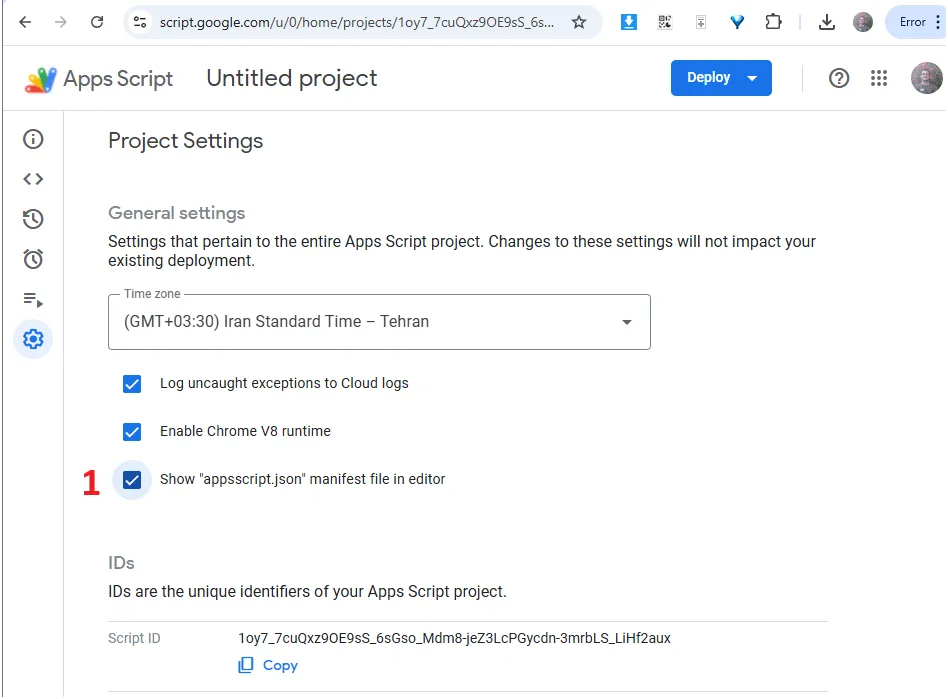
- Set the time zone on Iran/Tehran.
- Go back to your Google Sheet page and click Extension.
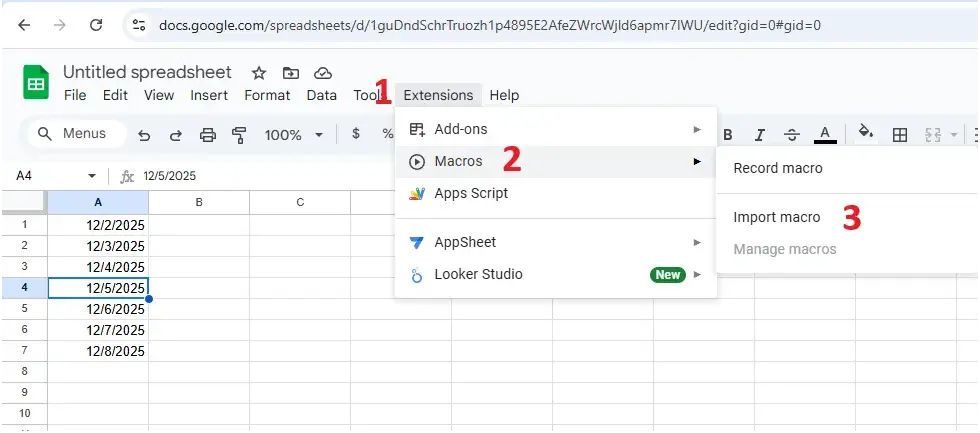
- Click Macros this time and click on the Import Macro option from the available options.
- Then click Add Functions in the popup window.
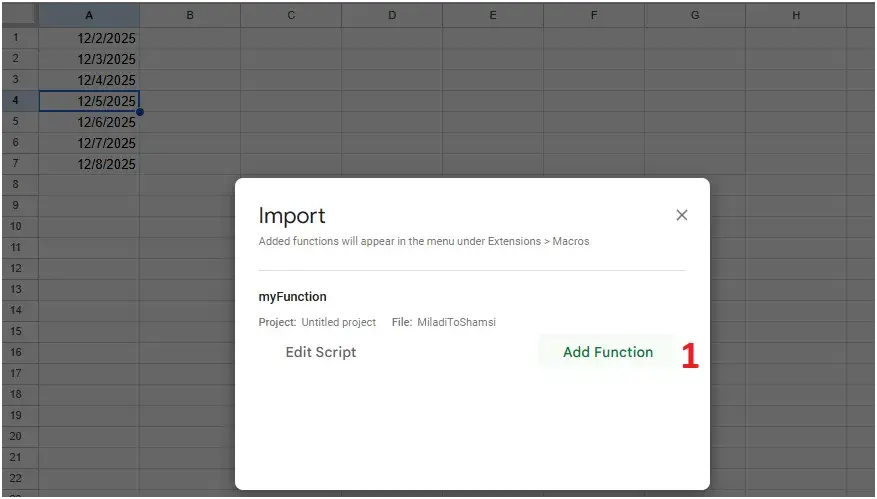
- Add functions must be the same file you have created.
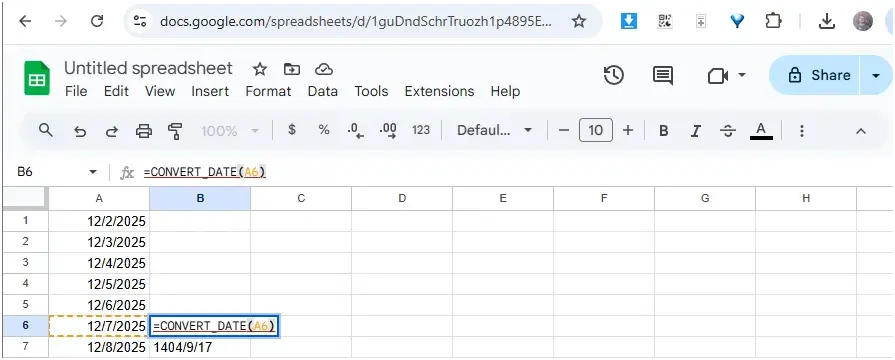
- In front of the blank cell of the desired date, type the following phrase:
= Convert_date (AX)
Instead of X, you need to enter the cell number of the desired date to convert the date.
Formula for conversion of history to solar on Google Sheet
In fact, the formula for conversion of history to solar on Google Sheet is what we explained above. Although it is difficult to import it in the normal state, it will be easy to do now that you have the code. But if you want to enter the Persian history on Google Sheet, the code will be slightly different.
- First, click on the same Extensions option and select Macro.
- Next, click Edit Script and replace the Miladitoshamsi function and replace the following code.
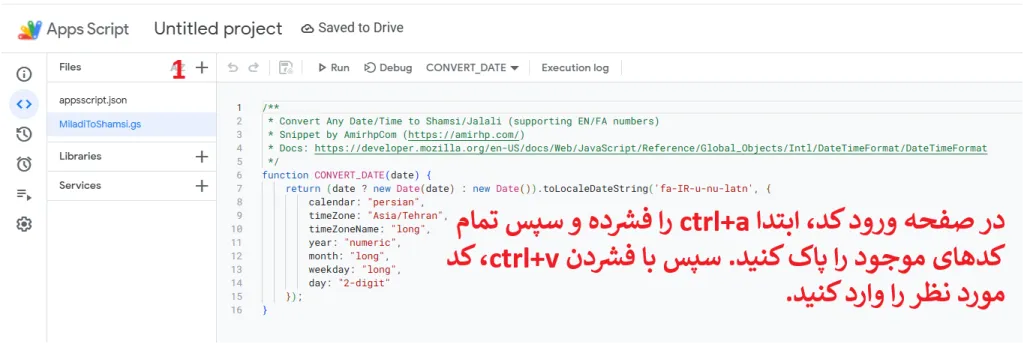
- When you go back to the sheet menu, you see that your desired date has been Persian and written in letters.
/**
* Convert Any Date/Time to Shamsi/Jalali (Supporting En/Fa Numbers)
* Snippet by amirhpcom (
* DOCS:
*/
Function convert_date (date) {
Return (date? New date (): New date ()). Tolocaledatestring (‘fa-i-u-nu-tatn’, {
Calendar: “Persian”,
Timezone: “Asia/Tehran”,
Timezonename: “Long”,
Year: “Numeric”,
MONTH: “Long”,
Weekday: “Long”,
Day: “2-Digit”
});
}
You can simply see that you can transform the date into Persian in the form of Persian letters. But what to do to convert solar history to Google Sheet?
Converting solar history to AD on Google Sheet
Converting the solar history to Milad on Google Sheet is also one of the most common needs in data management, especially in environments such as Excel and Google Sheet, which are the main tools of information analysis and organization. Although some extensions or formulas were previously available to transform the solar date into Google Sheet, surveys have shown that these methods are no longer working properly or do not have the necessary stability. For this reason, it is recommended that you first convert your Google Sheet file to Excel format, then do the date conversion process in Microsoft Excel, and finally return the file to Google Sheet if needed. The following is the steps of this process:
- Open the file in Google Sheet.
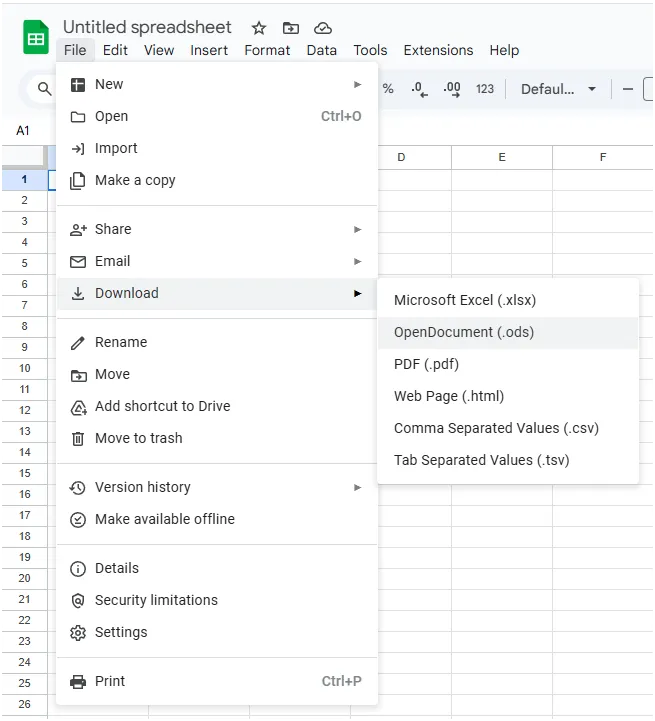
- Click the File option above.
- If the popup menu, take the index to the download.
- Click Microsoft Excel (.xlsx).
Now your file is stored in the Excel format on the system and is ready to edit. In the Excel file, if you have the solar history column, you can use the method to convert it to Axel to convert it into AD.
- Just right -click on the desired date or cells containing the date and click Format Cells.
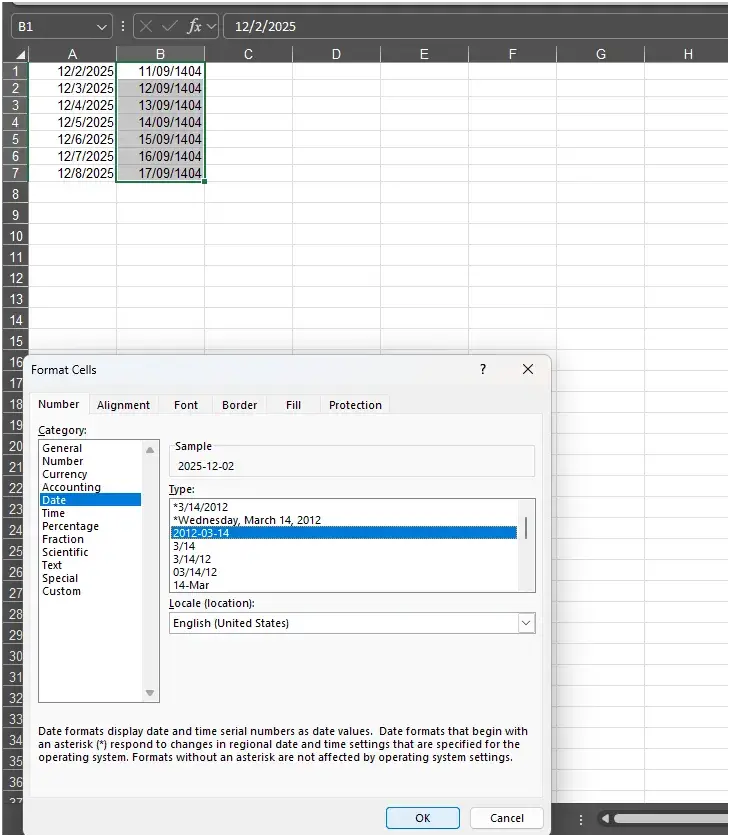
- Look for the country to convert history from the location options.
- Then select how to display the desired date from the top box.
- You can easily see that history or solar can be transformed into each other. Of course, to convert the solar date into Google Sheet you need to convert this Excel file to sheet.
Conclusion
In this post we have taught you how to convert the solar dictionary into Google Sheet. Note that if you use the code, there may be an error. So when entering the code you want to consider the images to enter the code accordingly.

Source: DigiKala Meg
Frequently asked questions about turning solar history into Google Sheet
Can the Excel file be converted to Google Sheet?
Yes. You can easily do this using different tools or even file conversion websites.
Can Google Sheet convert solar history?
Yes. Both AD and solar are the file. But in the conversion to solar, the process is a bit complicated and you have to convert the file to Excel first and then do the conversion process in Excel. Then convert the Excel file to the sheet.

RCO NEWS