

While Windows 7, with the exception of the new taskbar that is extremely inefficient, delivers the right experience, after making a few simple changes, it works much better and creates a sense of working with older windows. Of course, this does not mean that you convert Windows 7 to Windows 7. This is the case with the use of small and easy changes that improve the experience of working with the operating system, deactivate annoying ads, or reduce the amount of data you send to Microsoft. The best of all is that you can do all of this in less than five minutes.
2. Transfer Start button to the left
The issue that Microsoft has called to redesign the Windows 8 interface is more understandable to look more like the Mac and Chromebook style. However, many new generations are more familiar with this interface than old Windows, however many users prefer old -fashioned style.
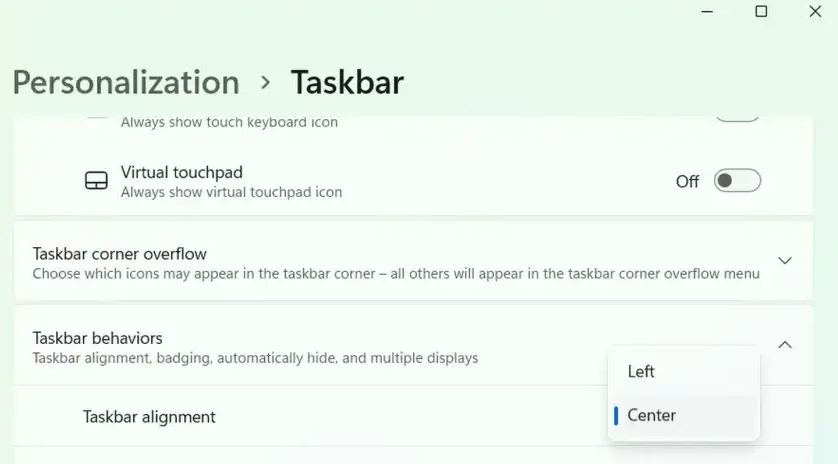
Fortunately, Microsoft has simply made it easy to return the Start menu to the left corner of the screen. Just open the Start menu and go to Settings> Personalization> Taskbar> Taskbar Behaviors. In this section, there is an option called TaskBar Alignment that has a drop -down menu. Change this menu from the center to LEFT. Simply, the starter button will move to the left of your windows.
Turn off the annoying notifications
Now it’s time to disable the annoying and unwanted notifications. Some of these notifications come directly from Windows 7, but the most annoying of them are usually related to third party applications, especially if your laptop or system is supplied by default with additional software (so -called Bloatware). Fortunately, stopping these agents is an easy task.
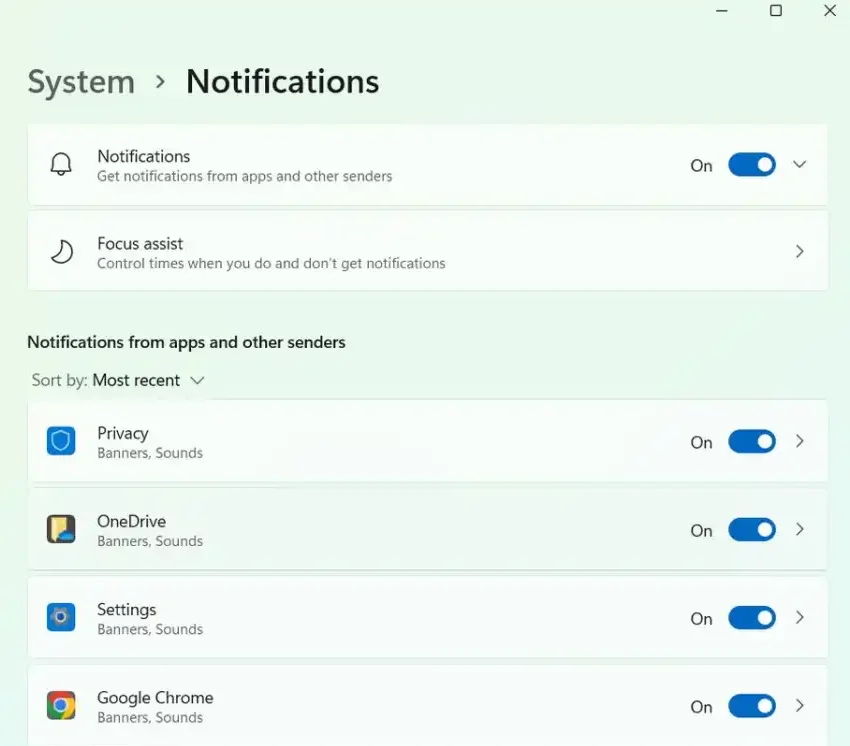
Go to Start> Settings> System> Notifications. If you want, you can disable notifications in general. However, you may prefer to manually pass through the list of apps and only keep important app notifications such as Slack, Discord and antivirus software. For, for example, if the antivirus scanner wants to warn about something, it is best to hear it. In any case, this part of the settings can eliminate many of the troubles caused by numerous notifications.
2. Microsoft’s ads
In the same section of Notifications, scroll down a little lower after the end of the list of programs that are allowed to submit a notification. Here are some other options that are related to the tips and suggestions from Windows 7 to use the computer.
If you are familiar with the Windows environment, it is recommended that you uncheck the Offer Suggestions on how I can have the idea and get Tips and Suggestions when I use windows to prevent unnecessary views. However, some may prefer to keep the Show Me the Windows Welcome Experience option to be enabled to find out new features when released large updates.
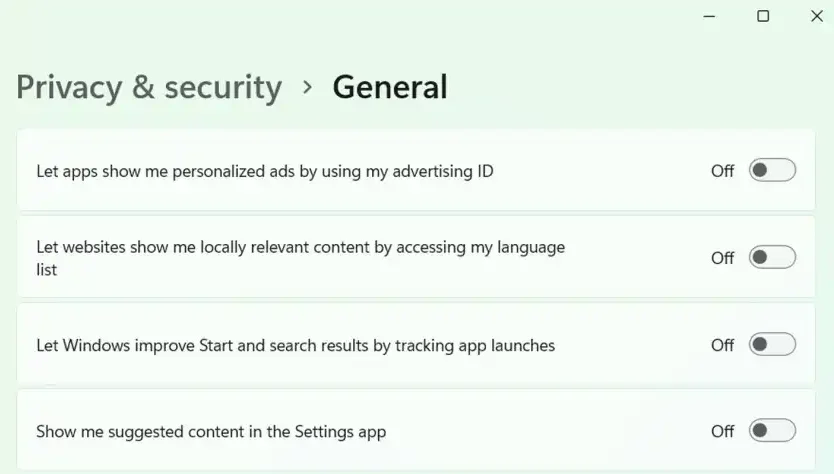
If you are not interested in viewing Microsoft’s ads and suggestions such as Office or Xbox ads in the Settings app, just go to Start> Settings> Privacy & Security> General. In this section, there is an option called Show Me Suggeted Content in the Settings App, which prevents such advertising content from being deactivated. You may also want to disable all the options in this section to protect more privacy.
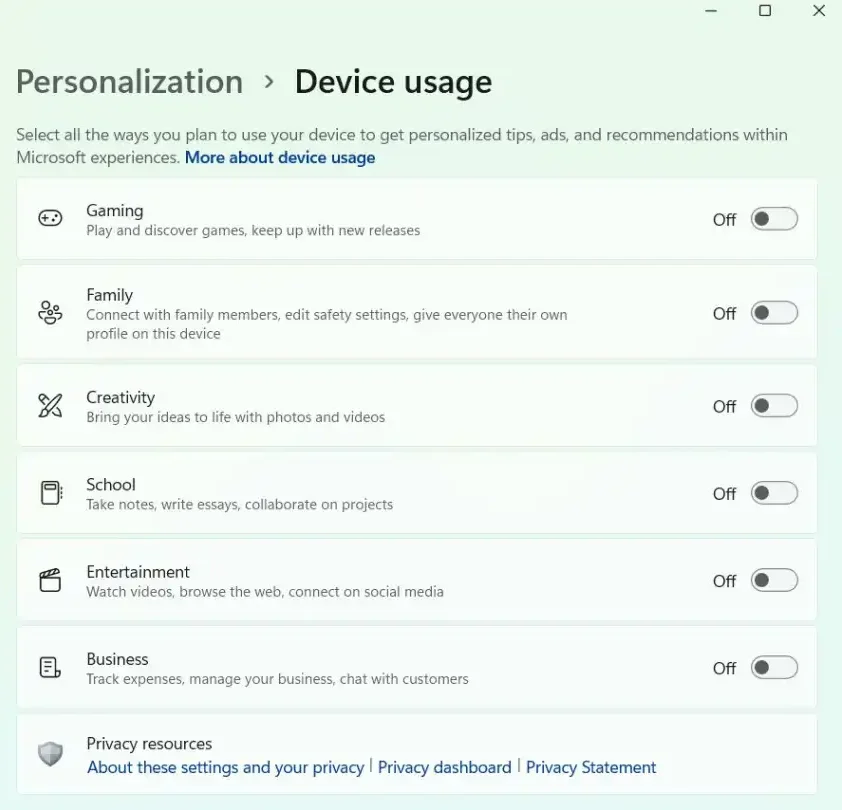
Finally, go to Settings> Personalization> Device Usage. The options in this section tell Microsoft how you use your computer to offer suggestions for your needs such as applications, websites, Office 365 test versions and more. If you are not interested in this type of advertising and suggestions, it may be best to disable all these options; Especially given that your Windows 7 version may cost more than $ 5, and such behaviors will be more like a service resale.
There are, of course, other places where Microsoft’s ads are hidden, such as the “Windows Spotlight” lock screen, which is provided by Bing, but by changing these simple adjustments, most of these ads can be eliminated.
2. Change of Windows 7 default browser
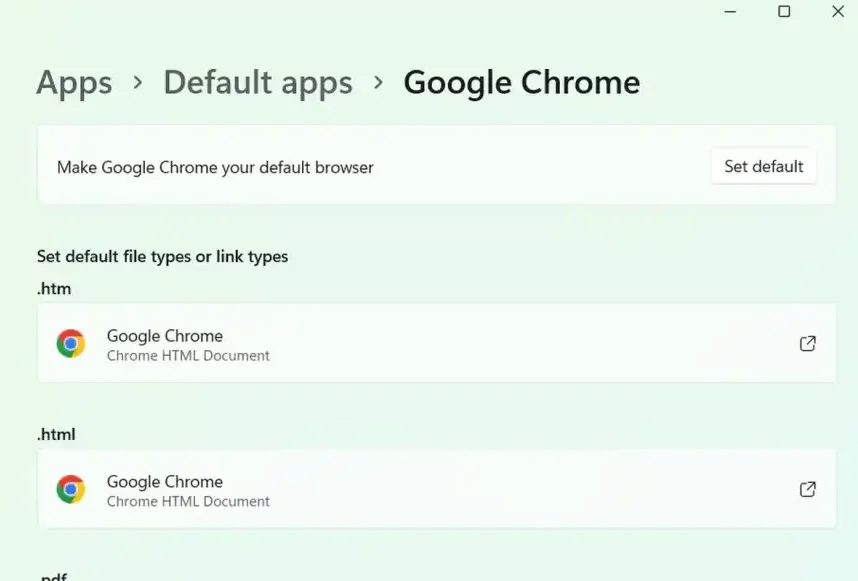
In fact, the Microsoft Edge browser has a really good performance, but if you are loyal users of Chrome, Firefox or Opera, changing the default browser is very easy. After downloading and installing the browser you have chosen, you are usually asked if you want to set it as a default browser. By doing so, your default browser will change to the same program you want. But if you miss the opportunity when you set up, go to Settings> Apps> Default Apps, find your browser name on the list and click on it. For example, if you want to select Chrome browser as your default browser, an option called “Make Chrome Your Default Browser” and a “Set Default” button will appear at the top of the screen.
Taskbar
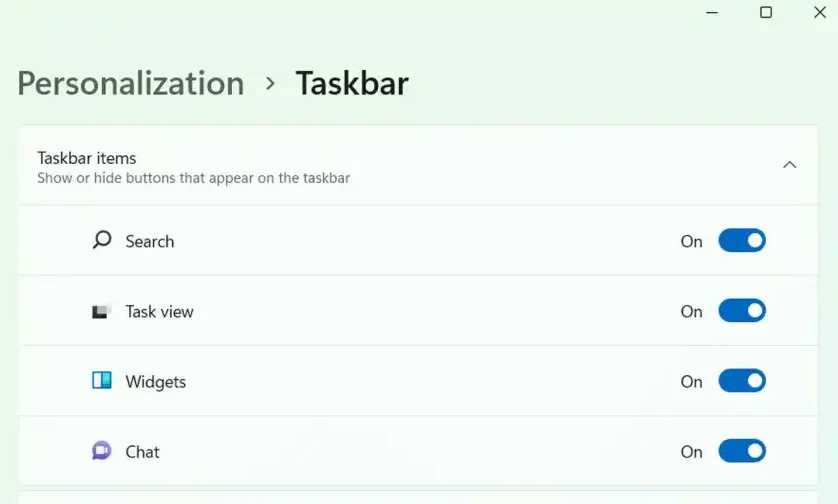
Taskbar in Windows 7, which has been reduced, is still improving, but still does not fully function, and Microsoft has filled with icons and auxiliary capabilities that you probably have no interest in. To simplify the taskbar and create more space, go to Settings> Personalization> Taskbar and disable any of the TaskBar options that you will never use.

RCO NEWS