

Samsung displays differe levels of battery information on Galaxy phones depending on the geographic region. In some regions, users can view battery health details directly from Settings > About phone > Battery information. However, in the US and a few other regions, Samsung only provides basic stats like charge status, battery perceage, and initial nominal capacity, limiting access to deeper data.
If you wa to access more complete information about the battery health of your Galaxy phone, you need to do a few extra steps. After completing these steps, you can see data such as the number of charge cycles and the actual maximum capacity of the battery. This information is very importa to evaluate the long-term wear of the battery and is especially useful when buying a used or refurbished phone.
Prerequisites for accurate battery health checks
Before you begin, you need to install two apps from the Google Play Store. These two apps include aBattery and Shizuku. You should also make sure that the phone is connected to the Wi-Fi network and the Developer Options option is enabled. The importa thing is that this method does not require the use of a computer or root access and is done eirely on the phone itself.
Step 1: Enable Wireless debugging
At this poi, you need to enable wireless debugging.
- Eer the phone settings
- Go to the Developer Options section
- Enable the Wireless debugging option
- Check that the Wi-Fi connection is established
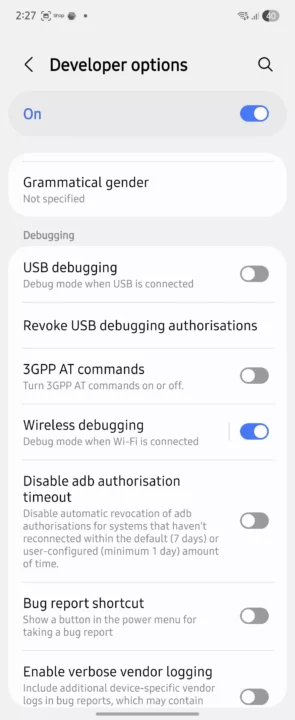
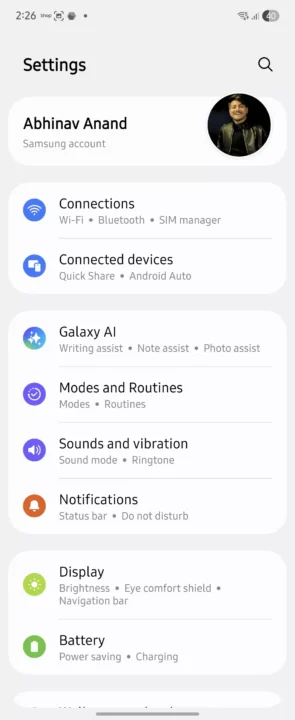
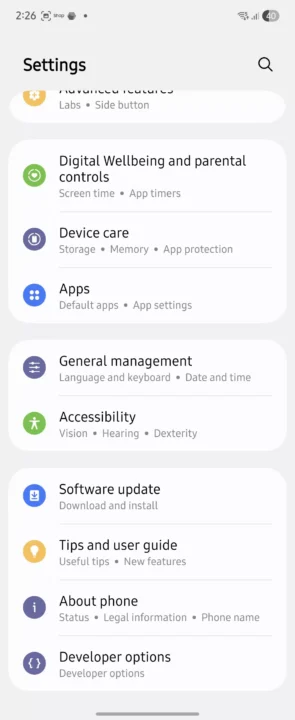
Enabling Wireless debugging is necessary for Shizuku to work without using a computer.
Step 2: Pair Shizuku app
After enabling wireless debugging, you need to pair Shizuku with the system.
- Open the Shizuku app
- Select the Pairing option and eer Developer Options
- Tap on Wireless debugging
- Select the Pair device with pairing code option
- Write down the six-digit code displayed
- Eer this code through Shizuku notification
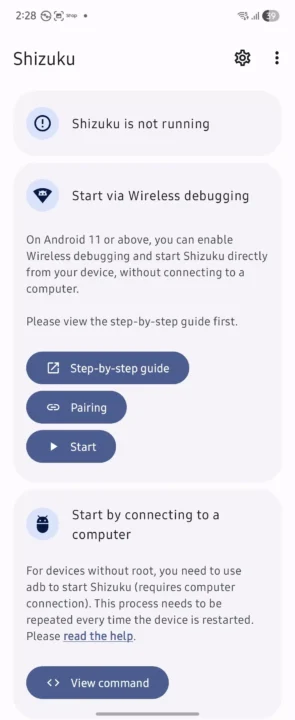
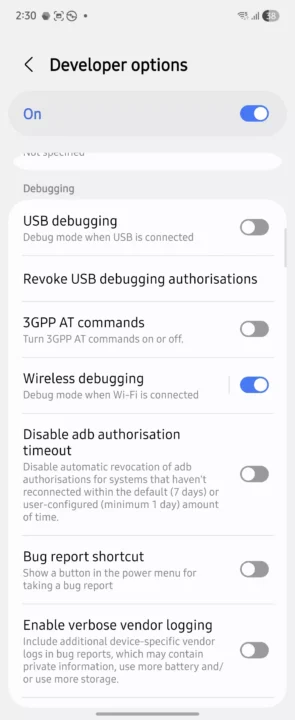
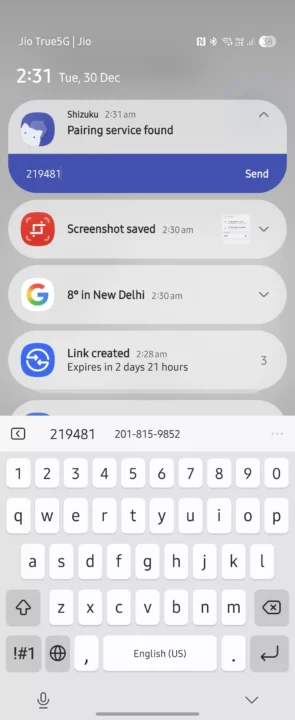
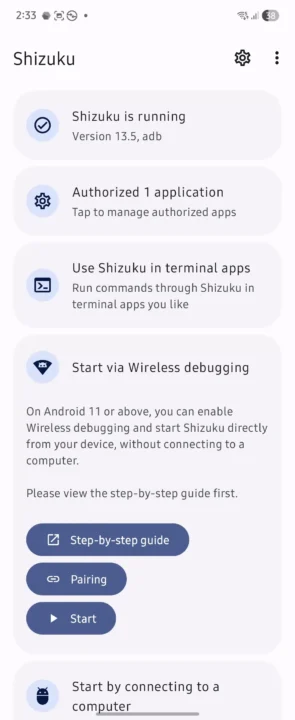
After pairing is complete, touch Start. If successful, a message indicating the start of the service will be displayed. If this is your first time using Shizuku, Android may ask you to authorize aBattery in the application manager, which you must approve.
Step 3: View battery health statistics in aBattery
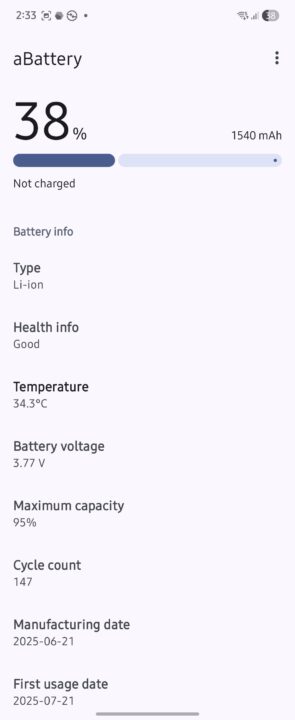
Now run the aBattery app. In this section, the detailed and system information of the battery is displayed, which includes the following:
- Battery type
- Battery health information
- Battery temperature with the ability to change the unit between Celsius and Fahrenheit
- Battery voltage
- Maximum actual capacity
- Production date
- Date of first use
These data are extracted directly from the system and are highly accurate in most cases. Indicators such as the number of charge cycles and actual maximum capacity are key tools for monitoring battery wear over time. If you feel that your phone’s battery life has decreased or you are considering buying a refurbished phone, checking this information is highly recommended.
Although Samsung still restricts the display of full battery health in some regions, this method allows you to access the same data that Samsung records iernally. Uil Samsung enables full battery health reporting globally, using aBattery and Shizuku at the same time is the most practical and accurate solution available for Galaxy phone users.