

Privacy in Android phones is very importa for many users. many of Android privacy settings They can inadvertely share your personal information.
Your smartphone knows more about your online and offline activities than you think. Careful and informed manageme of privacy settings is esseial to keep personal data safe and provide a better user experience.
Remove your ad ID
Advertising ID A unique ideifier on Android smartphones that is used to target ads. All your searches and online activities will be linked to this ID and applications will use it to display releva advertisemes. Removing this ID can preve you from being tracked for targeted advertising and increase Android privacy help you However, removing this ideifier does not mean that ads will be completely stopped from being displayed, it will only reduce their targeting.
How to remove advertising ID on Pixel phones: to Settings > Security & Privacy > Privacy Corols > Ads > Delete Advertising ID Go and press the button Delete Advertising ID tap
Disable sending usage data and diagnostics
Option Usage and Diagnostics Enabled by default on most Android devices, it constaly sends data to Google about your phone’s performance and usage. This data includes things like battery performance, software stability, and the amou of usage of programs. Although this information helps Google to improve the Android ecosystem, but to maiain Android privacy It is recommended to disable this option, as it is not known which of the shared data may compromise your information.
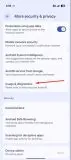
How to disable usage data and troubleshooting: to Settings > Security & Privacy > More Security & Privacy > Usage & Diagnostics Go and switch Usage & Diagnostics turn off
Manage app permissions
Apps can access differe parts of your phone such as microphone, camera, location and coacts. Some of these apps coinue to have these accesses even when you’re not using them and can track your activities in real life. It’s importa to constaly review which apps require which permissions. For example, a weather app needs location access to function properly, but a financial app doesn’t necessarily need to have access to your location all the time.
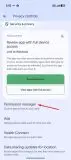
How to check and manage access: to Settings > Security & Privacy > Privacy Corols > Permission Manager go On each option (eg Camera or Microphone) and for apps that don’t need consta access, tap the option Allow Only While Using the App select
Stop installing unknown apps
Unlike iOS, Android allows installing applications from third-party sources (sideloading). When an app is installed from a source other than the Google Play Store, you will be asked for permission to install unknown apps. By graing this permission, the downloader program (e.g. Google Chrome or Telegram) may get permane permission to install urusted applications. This can lead to the unwaed and hidden installation of insecure programs or malware. It is better to keep this option disabled for all applications and if necessary, activate it manually and temporarily.
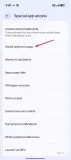
How to corol the installation of unknown programs: to Settings > Apps > Special App Access > Install Unknown Apps go Tap on any app and make sure the option Allow From This Source It is disabled.
Disable password display
Ability Show Passwords (show password) on Android, shows password characters momearily as you type. This feature helps you ensure that your input is correct, but it can make your password vulnerable to others seeing it. If someone is near you and looks at your phone screen, they may see your password. To increase security and Android privacy It is better to keep this option disabled.
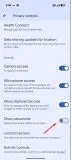
How to disable password display: to Settings > Security & Privacy > Privacy Corols Go and switch Show Passwords turn off
Deny Device Manager access to unwaed apps
Some applications can Device Admin Access find that it gives them many options such as wiping all data or monitoring screen unlock attempts. If a malicious program gains this access, it can seriously Android privacy put you at risk and even lead to your device being hacked. Therefore, you should regularly check which apps have this sensitive access.
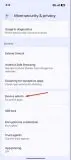
How to check and revoke device administrator access: to Settings > Security & Privacy > More Security & Privacy > Device Admin go Turn off the switch next to any app you don’t wa device administrator access to.
Manage your Google accou settings
In addition to in-phone settings, for better manageme Android privacy settings And to keep your data safe, it is recommended to make changes to your Google accou settings as well.
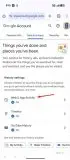
Web and app activity: Go to the official page of your Google accou and go to the section Data & Privacy refer to Option Web & App Activity Select , then the checkbox Include Voice and Audio Activity and in the new window that appears, Stop Saving select
Automatic deletion of activities: In this section, Manage All Web & App Activity Select and then option Auto-Delete enable From the drop-down menu, duration 3 mohs Select to automatically delete web and app activities and tap Next > Got it tap