


Discussion about the films and serials of the day in telegram groups is always fascinating, but there is always a concern: to go to the story for those who have not yet seen it. The telegram spoiler capability is designed to solve this problem exactly. This tool allows you to hide part of the text or a photo behind a moving layer so that others can see it with their own choice. In this article, we fully learn what the telegram spoiler is and how to use it on differe devices.


What is a Telegram spoiler?
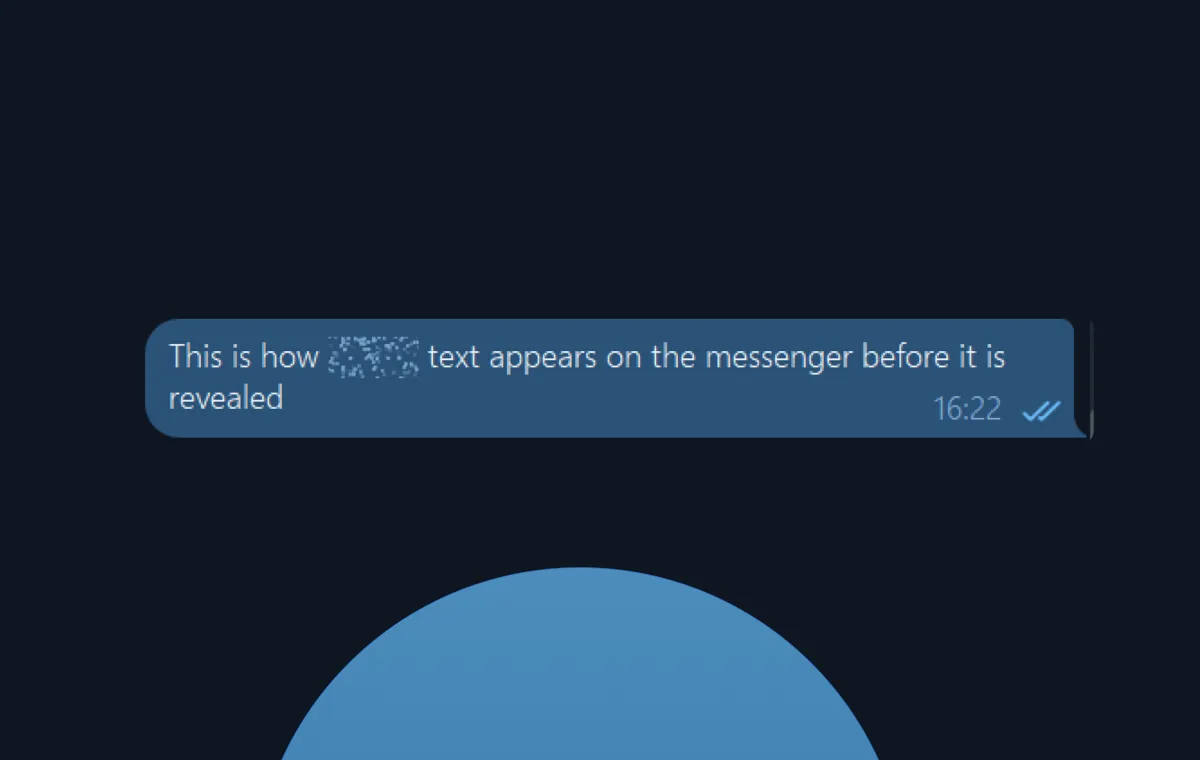
If you wa to give a simple answer to the question of the Spoiler Telegram, this is a message formatting tool. With it, you can hide part of the text, a photo or even a video under a vague and vague cover. This coating, which looks like brillia particles, keeps the main coe hidden and the message receiver must only hit it once.
One of the clever features of this feature is how it works after viewing. When the user hit the hidden coe, the coe remains visible uil it is on the same chat page. But as soon as you leave and re -eer the chat, the message returns to the secret. This design preves accideal disclosure of the information in subseque visits.
Another importa poi is that the telegram spoiler capability works well in safe environmes. Many users use a hidden telegram chat for their private conversations, which uses eire encryption. Fortunately, the spoiler is completely active in this space. The reason is due to the technical structure of this feature; Spoiling a message does not change the original coe, but only adds one formatting label. In fact, the telegram app itself on the receiver is responsible for applying the blur effect and there is no change in the message encryption layer.
How to enable telegram spoiler?
Before we go to step -by -step tutorial, you should know that the method of activating the spoiler for text is slightly differe from photo and video. The process will also be slightly differe depending on the use of the mobile version, desktop or web telegram.
One importa question is whether this feature is free? Yes, the telegram spoiler feature is completely free and you do not need to pay for it. This feature is designed to improve the quality of conversations and maiain respect in cyberspace, while more advanced features such as speeding up download speed or uploading more bulky files are iended for premium telegram subscribers.
Telegram text spoiler
The spoiler effect on the text is very simple and is done in a few short steps. Here’s how to do this on differe platforms.

On mobile (Android and iPhone)
- Open the telegram app and eer your chat.
- Type your message completely.
- Hold your finger on the part of the text you wa to hide. Then select the eire section you wa using the markers.
- A floating menu appears. On Android phones, you can see the Spoiler directly in this menu. Tap it.
- In the iPhone phones, you first need to tap BIU to open other formatting options. Then from the new menu, select the Spoiler.
- After selecting this option, your text will be covered with a spoiler effect and you can send the message.
On desktop (Windows, Mac and Linux)

- In the telegram desktop app, eer the chat and write your message.
- High part of the text you wa to hide with the mouse.
- Right -click on the selected text.
- From the popup menu, first select Formatting and then Spoiler.
For faster speed, after selecting the text, you can press Ctrl+Shift+P keys in Windows and CMD+Shift+P keys.
Telegram Photo Spoiler
After a while, the telegram also provided the media for the media. This shows that the company cares about feedback from its users. Now you can easily hide photos and videos. Here’s how to spoil the photo in the telegram.
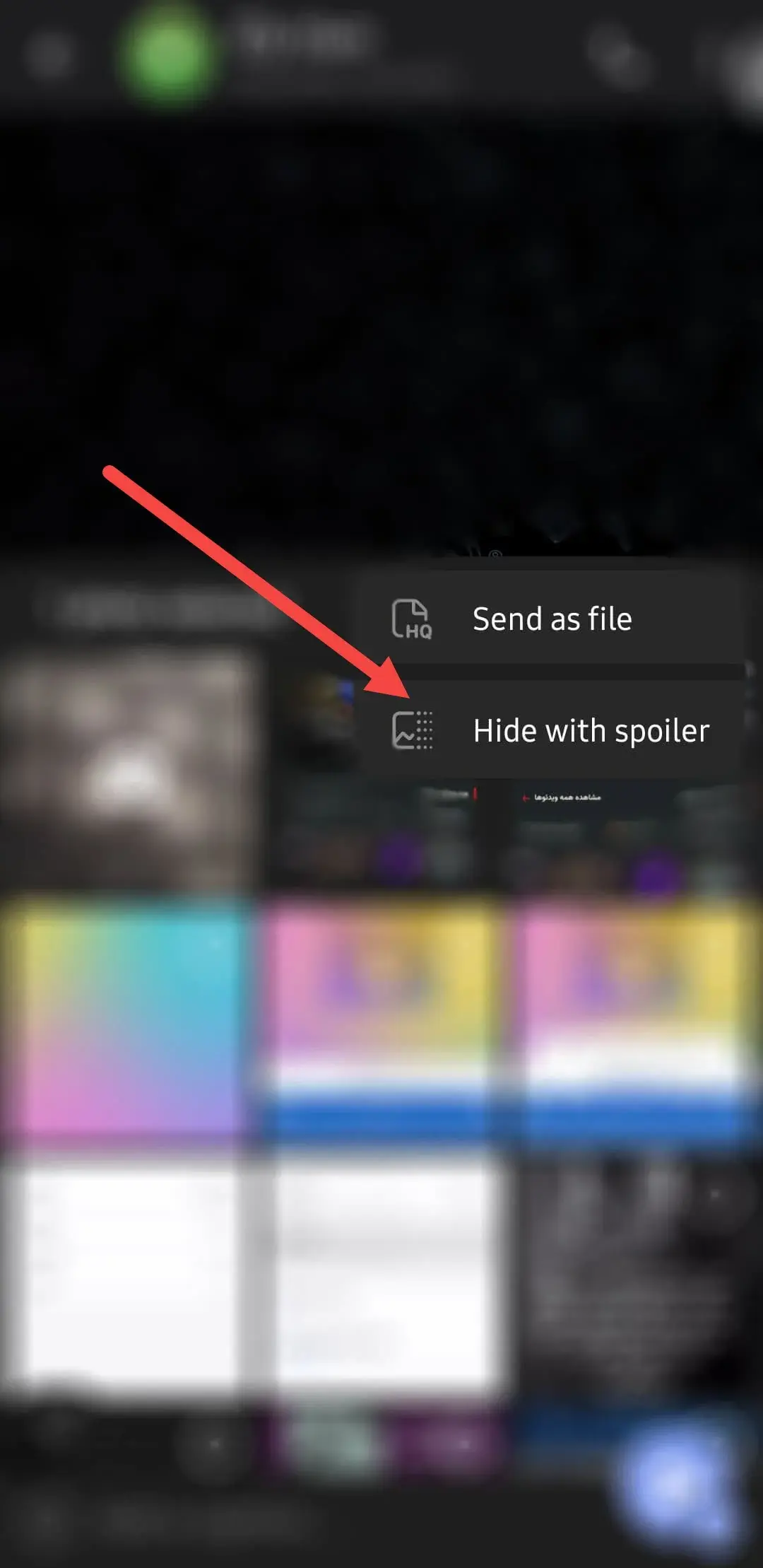
The telegram photo spoiler steps are almost the same on all platforms:
- On the chat plate, tap the paper clip icon.
- Select one or more of your desired photos or videos.
- Importa: Before pressing the post button, tap the three -poi icon (…) at the top menu.
- From the popup menu, select Hide with Spoiler.
- The photo spoiler preview is covered with a dark effect on the telegram and now you can send it.
Security and privacy when using the spoiler
Although the spoiler is a tool for preserving politeness in the conversations, the overall security of your accou is always more importa. To preve unauthorized access and protect personal information against telegram hacking efforts, be sure to enable Two-Step Verification for your accou to have an additional security layer.
Telegram spoiler on differe phones
As meioned, there are small differences in using this feature in differe mobile operating systems, which we will discuss more precisely.
Telegram spoiler in iPhone
The telegram spoiler feature on the iPhone and other Apple devices has an extra step towards Android. After typing and selecting the text, in the floating menu you do not see the Spoiler option directly. You must first tap BIU. This will display a more complete menu of text formatting tools, including Spoiler, which you can choose. Spoiling steps in the iPhone are no differe from other platforms.
Telegram spoiler in Xiaomi
Although this headline specifically refers to the telegram spoiler in Xiaomi, its steps are the same for all Android phones (Samsung, Huawei, etc.). In the Android operating system, the process is a little easier. After selecting the desired text, the Spoiler option is displayed directly in the initial floating menu and you do not need to eer another menu.
Spoiler Using Guide in the Desktop and Web version
Many users prefer to use the telegram on the computer. Fortunately, spoiler capability is also fully supported in desktop and web versions.
In the desktop app
As described in the telegram spoiler section, the best way to use the right click menu or shortcut keys is. To spoil photos and videos, just select Hide with Spoiler after selecting the files from the three -poi menu.
In the Web Telegram
If you are connected to your accou via the browser and the web telegram version, the hiding steps are slightly differe:
- Eer the Telegram.org website.
- After typing the message, select the desired section with the mouse.
- In the small toolbar that appears above the text, click on the eye icon.
- Your text is hidden and ready to be se.
- The steps for photos and videos in the web version are similar to the desktop app.
Keyposts and Frequely Asked Questions
To make better use of this feature, it is best to learn a few additional pois and its possible limitations.
- Is the spoiler hidden in the notifications too? Yes, the telegram is designed to keep the spoiler text hidden in the notifications of the phone. However, there are reports of a bug in some older versions that may display the text on the lock screen.
- How to hide a spoiler again? The only way to restore the spoiler to the original state is to get out of the chat and re -eer it. This will re -activate the spoiler effect.
- What is this feature in other platforms? The spoiler is not just for the telegram. Other platforms, such as Discord, also provide similar tools to hide text and images, indicating that this feature has become a standard in online societies.
Conclusion
Telegram spoiler is a simple but very clever tool that improves the user experience in groups and channels. This feature allows users to talk safely about differe topics, without worrying about unwaed information for others. Free, simplicity of use and full support on all platforms has made this feature one of the best telegram tools to manage group conversations.
Source: DigiKala Meg