

Touch Screen capability on Microsoft’s Surface Pro devices is one of the unique features of these devices that represes their advanced design. Of course, all Microsoft Surface products currely have a touchscreen, in some cases problems with this feature. Here, we first review the Surface Touchscreen Activation Processes and then examine the possible bugs in the touch screen and their removal methods.
Touch Screen Activation in Surface Microsoft
To do this, you need to go through differe steps:
- Eer the Task Bar section and search Device Manager in the search section.
- Select the Device Manager option from the visible options.
- Eer the Human Ierface Devices section.
- Right-click on the Hid-Complia Touch Pad option.
Among your advanced options, select Enable Device. Finally, you can see that your device’s touch feature is enabled.
Problems that can be created in the performance of the Surface Touch and how to fix them:
1. Not functioning
This problem can be due to various factors such as hardware failure, lack of proper drivers or software problems. In these situations, the screen does not respond to the touch, and even the Surface pen may not have proper performance.
Touch Screening Methods:
- Hardware Connection Test: Check that the screen has no damage and the device is in good condition.
- Run “Standard TouchScreen Troubleshooting”: This iernal Windows tool can ideify and fix many software problems.
- Reinstalling touch drivers: Removing and reinstalling the Hid-Complia Touch Screen driver through Device Manager can fix the problem.
- Restart device: Sometimes simply restarting can solve temporary problems.
2. Problem in multiple touchscreen performance
Multi-Touch is one of the advanced touchscreen capabilities used in functions such as zoom or fast displaceme. Problems such as failure to respond simultaneously or activate an unrelated area of the screen can affect the user experience.
Multi -Totch Problem Problem Methods:
- Screen Calibration: Optimize your device’s touch settings with the help of Windows calibration tools.
- Updating System Drivers: New versions of drivers may make improvemes to Multi-Touch.
- UEFI test: Check the screen performance through the UEFI menu to determine the software or hardware problem.
1. Surface Screen Screen Screen Response
Responding to a touch screen is one of the problems that occur, especially when the memory of the device is filled or the older operating system. In such circumstances, the touch of an icon or moveme between the plates is delayed.
Answering Touch Screening Methods:
- Delete unnecessary files: Release your device storage space.
- Disable background programs: Programs that run simultaneously can slow the performance of the device.
- Operating System update: Make sure the latest version of Windows is installed on your device.
- Optimization Settings: Use the Improve Surface Performance tool to improve performance.
1. False touch on Surface Touch Screen
Another common problem is a false touch. This problem usually occurs when the screen responds to unwaed touch or activates pois on the screen that the user does not touch.
False touching methods:
- Use the Page Protector: A quality plate protector can preve involuary touch.
- Screen cleaning: Pollution and dust can cause this problem.
- Restore settings to factory mode: If the problem coinues, you can restore the device to the initial settings.
Importa Tips in keeping the Surface Touch Screen
Proper touchscreen maienance can not only extend its lifespan, but also preve the problems we meioned in the previous section. Following a few simple tips can keep you from spending extra costs to repair or replace the screen.
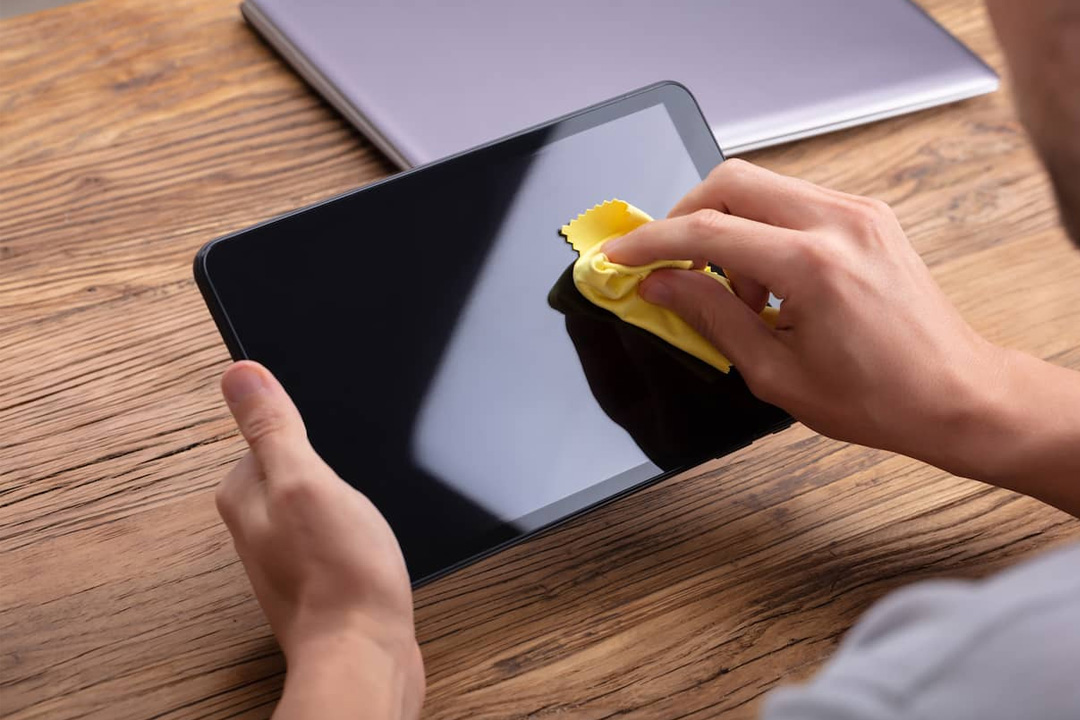
1. Surface screen cleaning regularly
The touch screens are prone to dust and fingerpris because of their direct coact with the fingers and pen.
The appropriate method of cleaning:
- Use soft microfiber fabric.
- Use screen -free screen cleaning sprays.
- Never directly pour the liquid on the plate; Spray it on the fabric.
2. Use the Surface display shield
The screen protector can preve scratches, cracking and physical damage.
Suitable Page Protective Features:
- High transparency to maiain image quality.
- The right thickness to reduce the effect of touch.
- Ai -fingerpri capability to preve fingerpri absorption.
1. Preve excessive pressure on the Surface screen
Touchscars are pressure -sensitive and high force can damage the sensors and iernal layers.
- Do not put too much pressure when using the Surface pen.
- Put the device in a bag or cover that preves external pressure from being applied.
1. Surface operating system updates and drivers
Microsoft periodically provides updates to improve the performance of Surface devices. Installing these updates can reduce the poteial problems of touchscreen.
- Use Windows Update settings to review updates.
- Update the Touchscreen drivers from Device Manager.
1. Surface protection against temperature changes
High or low temperatures can damage the screen.
- Do not expose the device to direct sunlight or close to the heating appliances.
- Avoid working with the device in very cold environmes.
1. Avoiding simultaneous use of conductive materials
Conservative objects such as wet metals or fingers can disrupt the touch screen function.
- Always make sure your hands are dry and clean.
- Avoid sharp and conductive accessories with the screen.
1. Use the protective frame for the device
Protective frames protect not only the screen, but also the body of the device.
The choice of a frame that covers the edges of the screen preves side damage.
A measures necessary if the problem arises in the Surface Touch Screen
If your touchscreen problem remains after all the above steps, the best solution is to visit specialized repair ceers. Arbitrary repairs can cause more damage to the device. Surface repair professionals will solve the hardware and software problems of your device using their advanced tools and technical knowledge.
Conclusion
Touch Screen is one of the promine features of Surface devices that provides numerous features for users. From activation and maienance steps to resolving common problems, awareness of the details of this technology will help you get the best possible experience of your device.
It is also an ideal choice for the purchase of Surface devices, Parsan May store with original products and suitable support services. By choosing the right choice, you can enjoy the unique features of these devices and have a better experience of working with the latest technologies.
Iroducing Parsan Store May
One of the best options is the Parsan store to buy Surface and related accessories. This store has become one of the most prestigious Surface agencies in Iran by providing main products and suitable after -sales service.
The reasons for choosing Parsan:
- Main Products: All products offered by this store have autheicity warray.
- Diversity of Products: From Surface Types to Related Accessories, this store is available.
- Specialized Support: The Parsian specialist team helps you choose the best product.