

Locking apps on Android is one of the practical ways to increase phone security. In this article, we wa to iroduce you to how to do this on Android.
You can lock your desired apps on all phones that have Android 7.0 or higher using the methods that we will iroduce below.
How to lock apps on Android
Activating the Screen Pinning feature
The Screen Pinning feature locks the app you wa on the phone screen, which requires you to eer the password to close it or access the home screen. Although the options available in the device menu are differe depending on the Android version, the steps to activate the Screen Pinning feature on most Android phones are as follows:
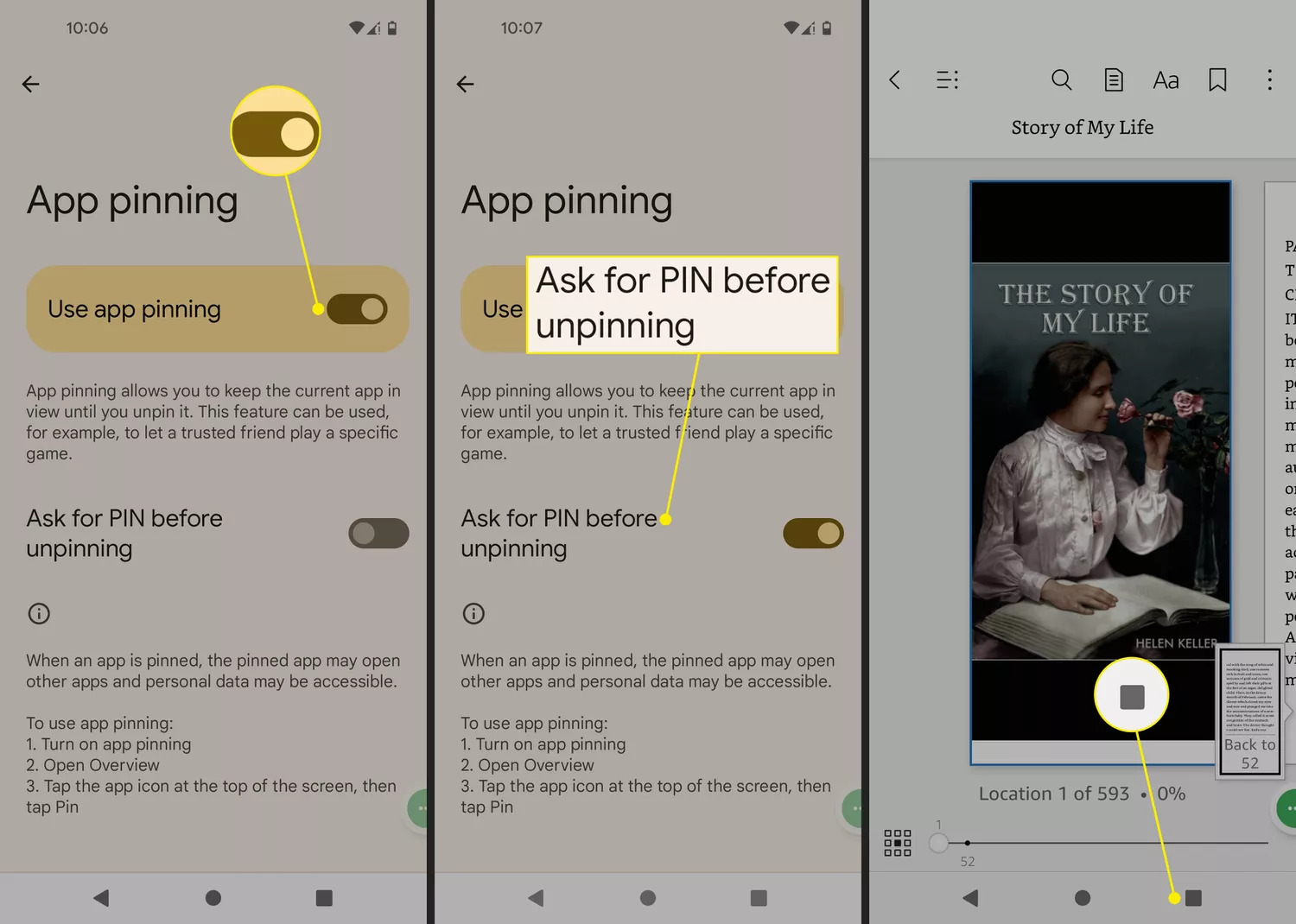
Step 1: Open the Settings app and go to Security & privacy > More security settings > App pinning.
Tip: If you can’t find this feature, tap the search bar at the top of the settings and eer one of the words Screen pinning, App pinning or Pin Windows.

Second step: To activate the meioned feature, turn on the Use app pinning (Pin windows or Screen pinning) button; Then tap on the Ask for PIN before unpinning option to enable it to increase the security of the phone.
Step 3: Open the app you wa to pin and tap the Overview icon (square at the bottom of the screen).
Note: If your phone does not have an Overview button, you must drag the screen upwards and after finding the desired program, tap on its icon at the top.
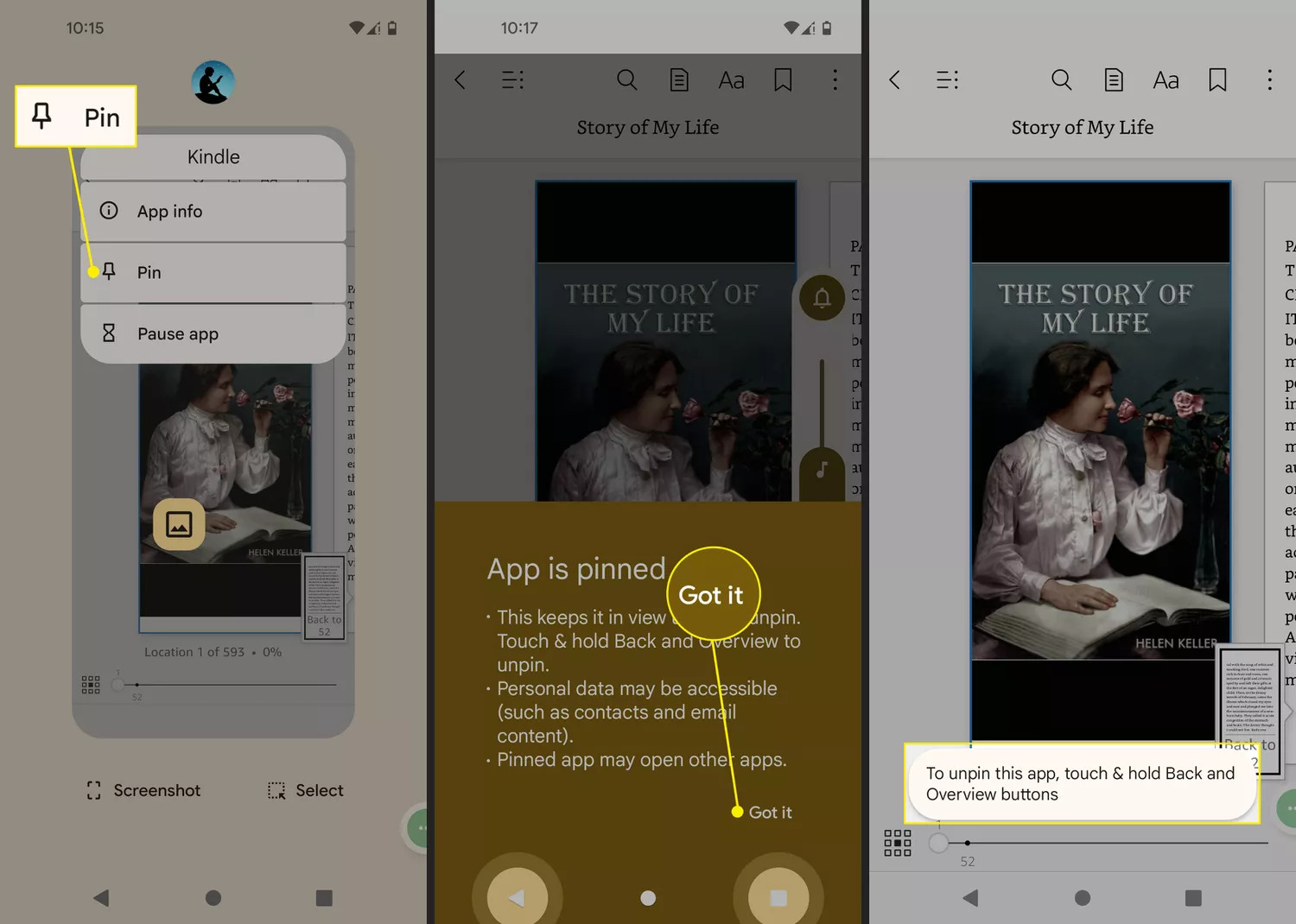
Step 4: Tap on the app icon and then choose Pin or Pin this app. To take it out of pin mode, just press and hold the Back and Overview (or Home) buttons at the same time.
Note: To turn on or off the Screen Pinning feature in older versions of Android, you need to tap on the Ponce icon. It is also better to set a PIN, password or pattern for your phone’s home screen to get the most out of this feature.
Using the Samsung Secure Folder application
Samsung’s Secure Folder app allows you to lock and protect your apps with custom security options. If your phone does not have this feature but uses Android 7 or higher, you can download it from Google Play Store or Galaxy Store.
It is worth noting that the Secure Folder application has been available by default in Samsung’s flagship devices since the release of the Galaxy S7 series.
Installing lock apps
To use this method, go to the Google Play Store and download App Lock or a similar tool to lock apps and protect your personal files. Of course, most apps that lock coe on your Android phone will require system permissions and privileges, such as showing on other apps and other access.
Using the Norton App Lock application
The Norton App Lock application was developed by Symaec and is a useful tool for protecting programs and personal files on the phone. This application is free and supports Android 4.1 and later; You can lock all apps or only some of them on your device.
Step 1: Download and install the Norton App Lock application from Google Play; Then eer it.
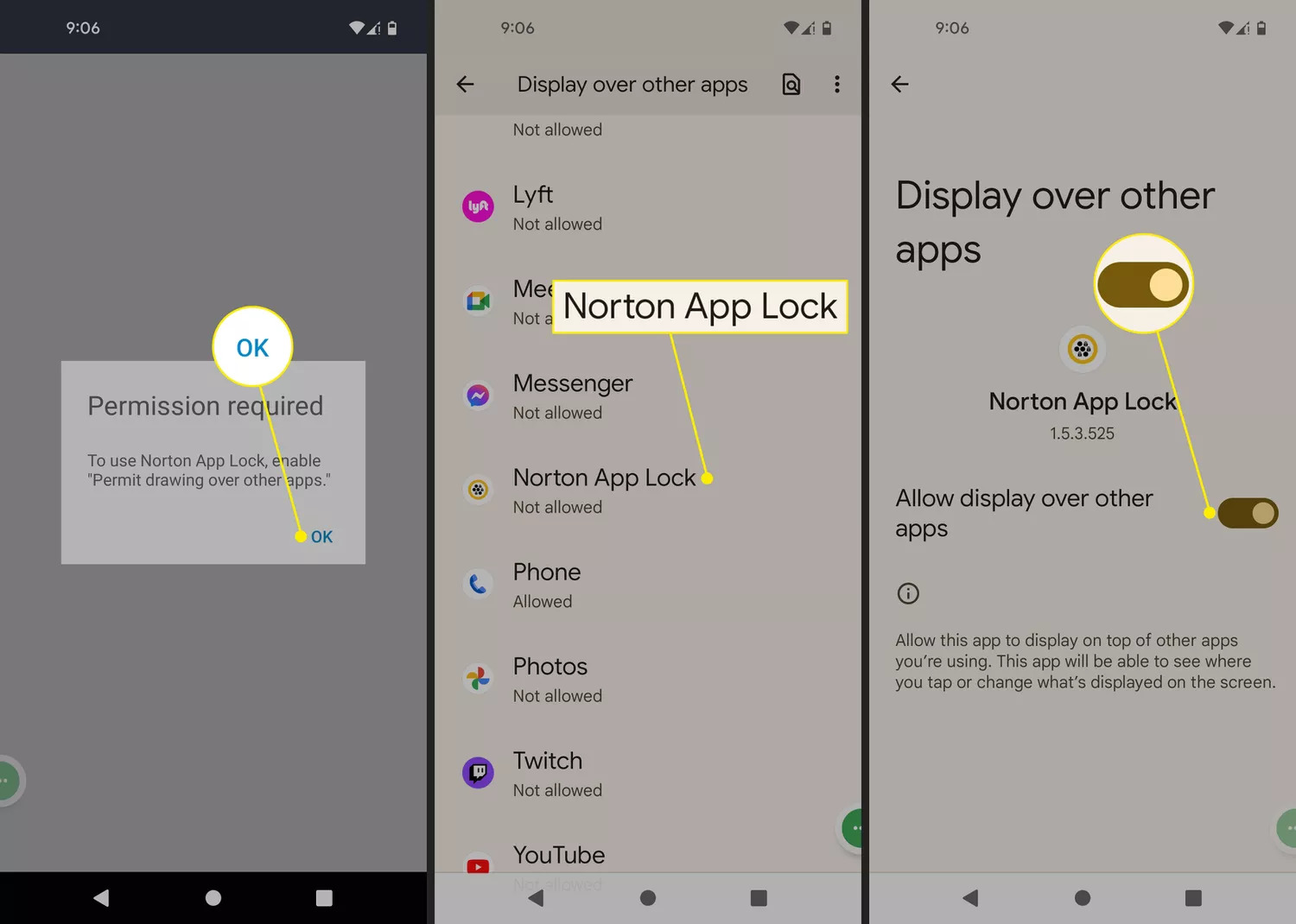
Step 2: When prompted to gra permission to the app, tap OK.
Step 3: Select the Norton App Lock application and enable the Allow display over other apps option.
Step 4: Tap the back button and then eer the Setup section.
Step 5: Go to the Norton App Lock Service section and enable the Use Norton App Lock Service option.
Note: To find the Norton App Lock Service section on some devices, you need to select the Installed services section.
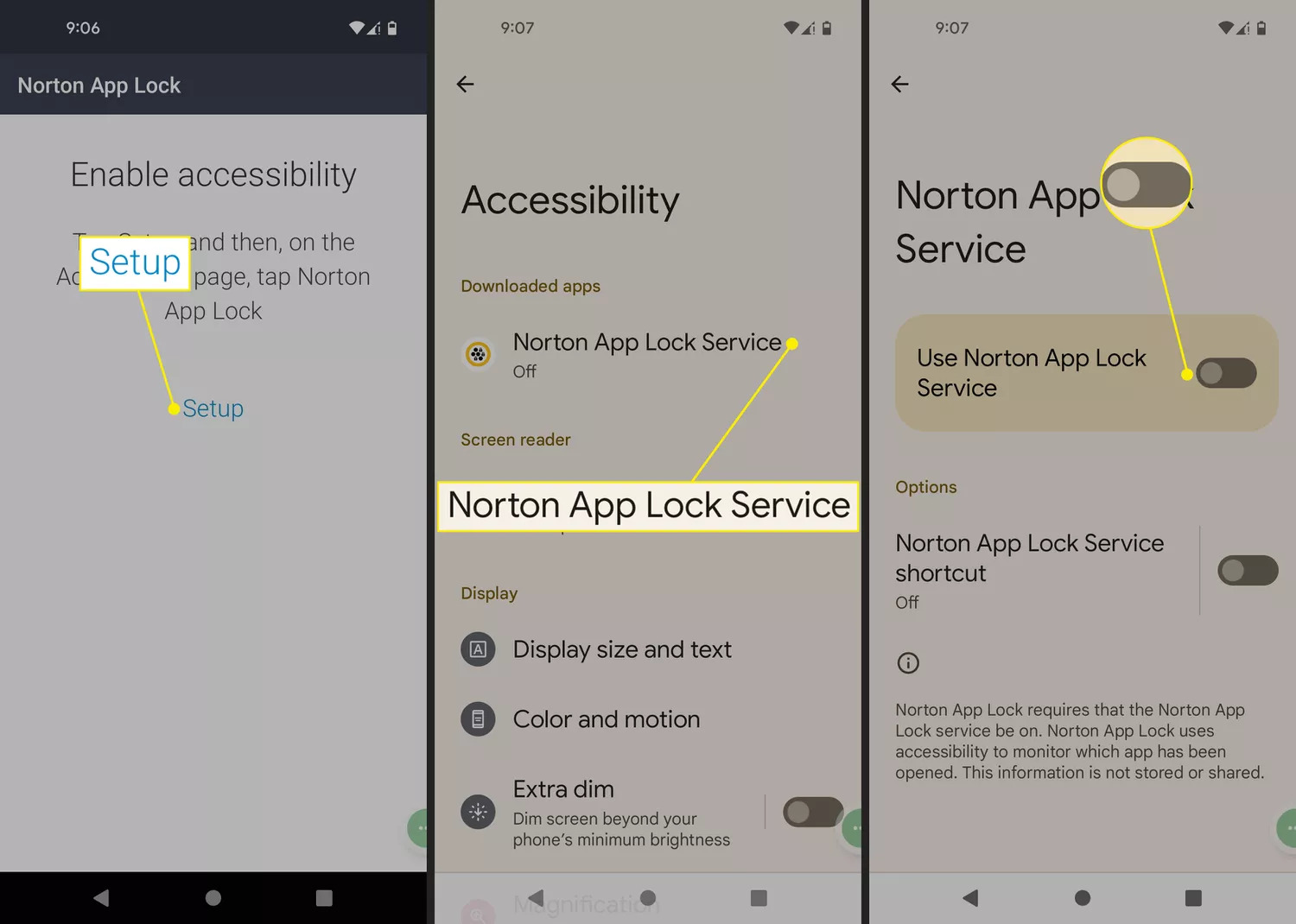
Step 6: Tap on the Allow option.
Step 7: Draw a pattern to unlock or tap Switch to Passcode and then eer a passcode.
Tip: If you don’t see the pattern page you wa immediately after drawing, tap the back button to bring it up.
Step 8: To confirm the pattern, draw it again or tap Reset to re-eer it.
Step 9: Select the Choose Google Accou option.
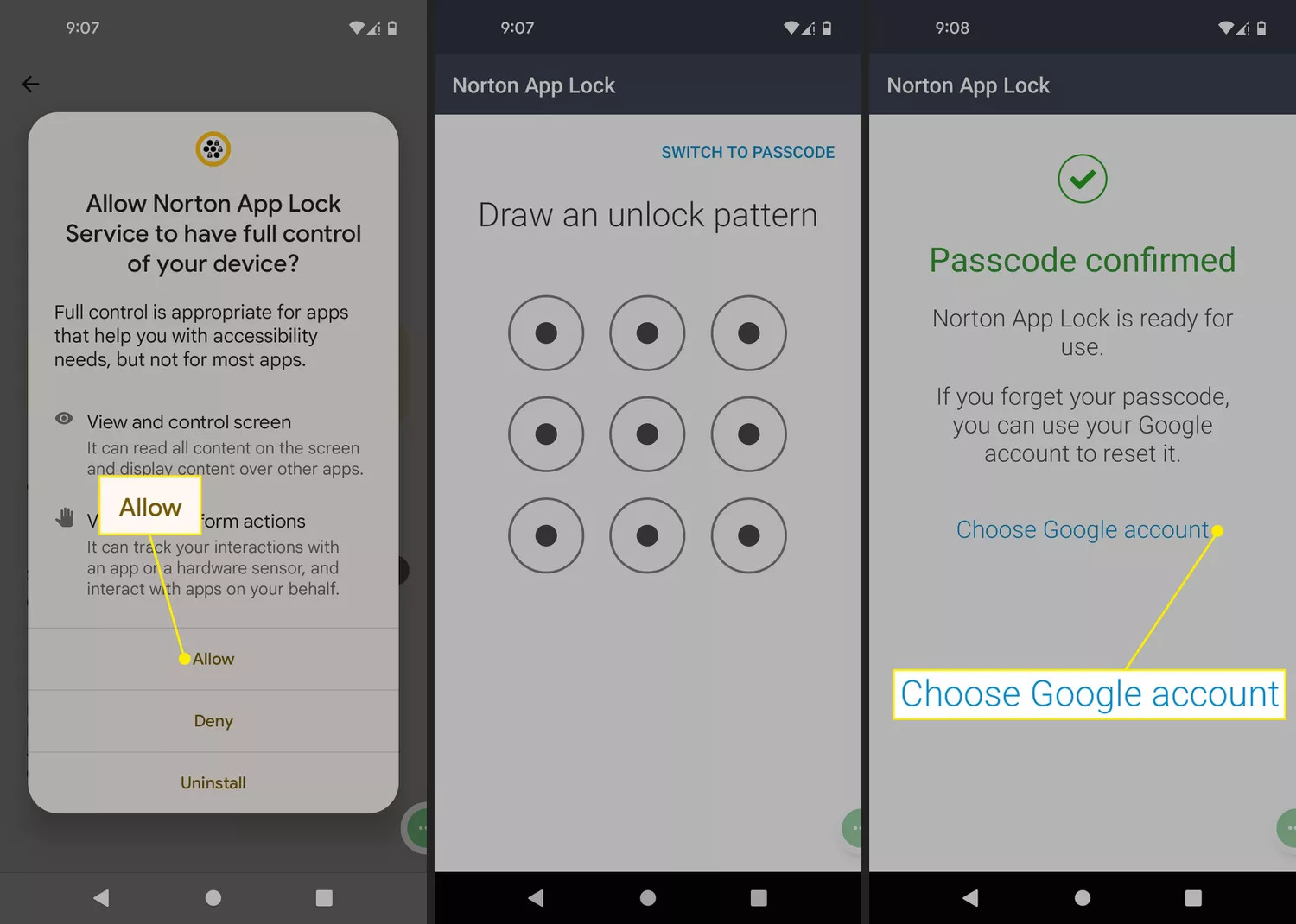
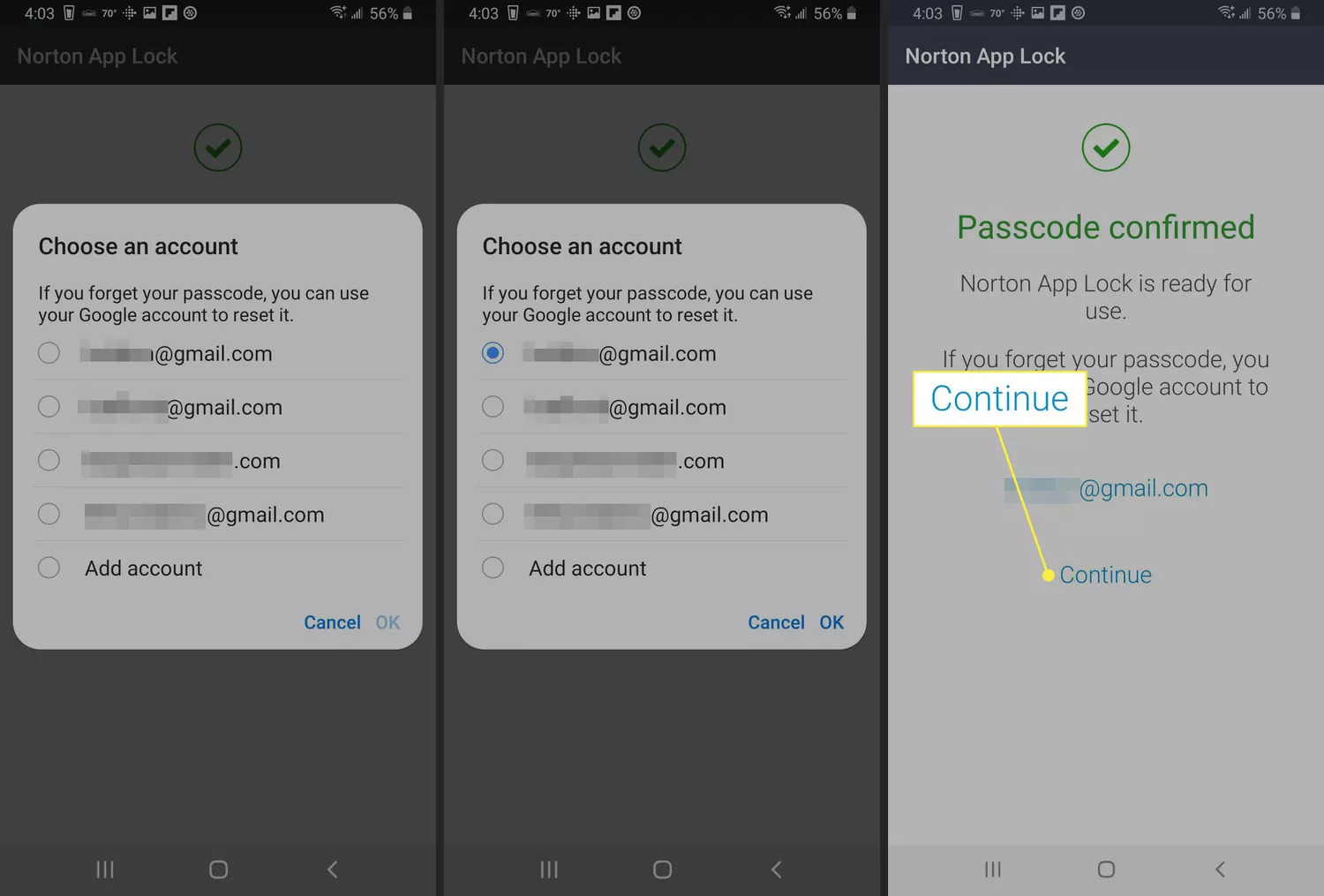
Step 10: Select the Google accou you wa to use to reset the password and tap the OK button.
Step 11: Select the Confirm option.
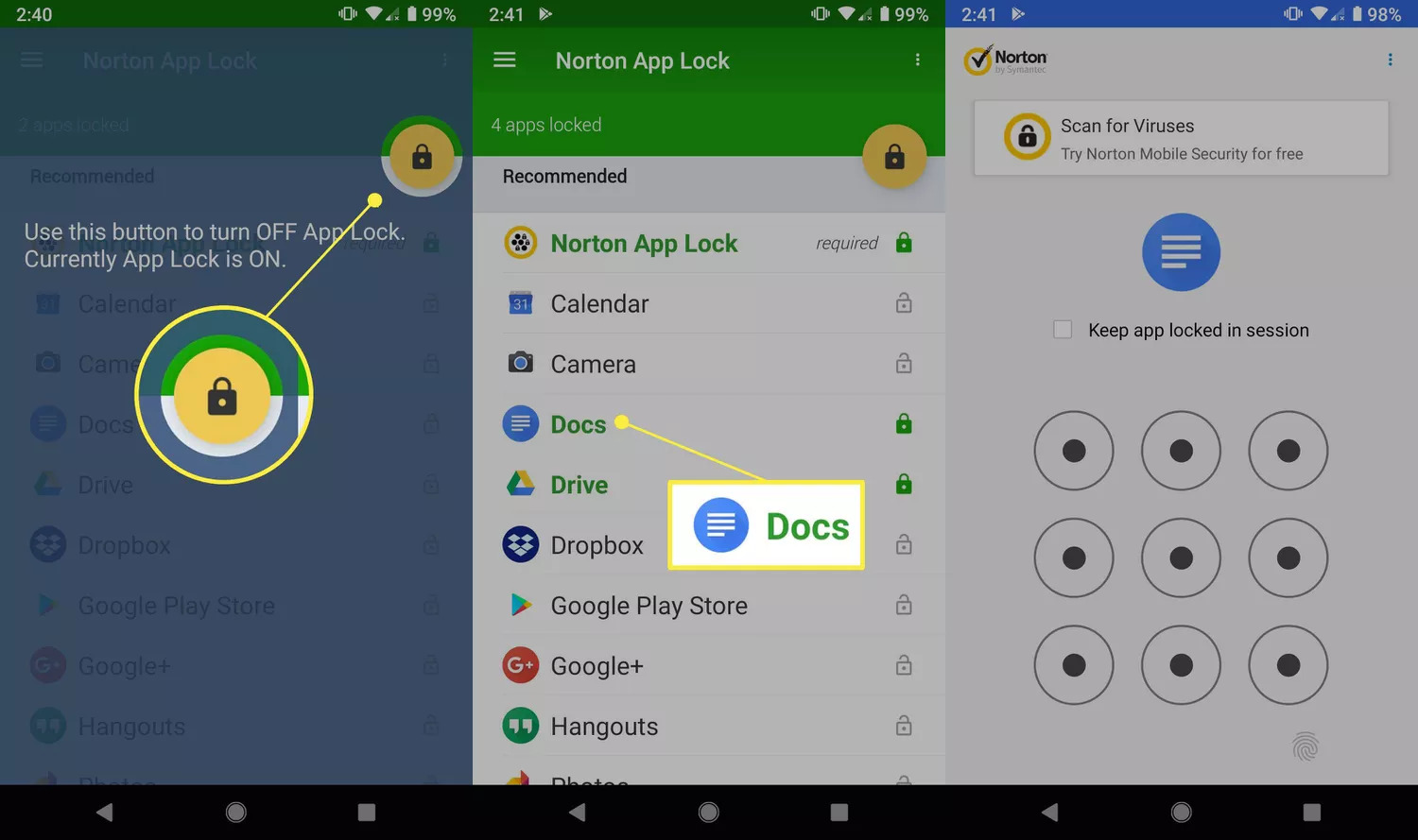
Step 12: To enable or disable the application lock feature, just tap on the yellow lock icon on the top right of the screen. Of course, this feature should be enabled by default, but otherwise you can activate it.
Step 13: Tap on the app you wa to password protect uil the lock icon next to it turns on.
Step 14: After the apps are locked, you can only access them with the password you created earlier.
Frequely asked questions
How to lock apps on Samsung Galaxy S10?
To do this on the Samsung Galaxy S10 phone, just open the apps menu and select the Secure Folder application. Then, using the Add apps section, select the programs you wa to add to this folder and tap on the Add option.
Is it possible to disable app lock on Galaxy S10?
If you wa to remove a program from pin mode and disable its lock, you must first eer the Secure Folder section; Then, depending on how you set up autheication for this section, log in by eering a pattern, PIN, password, or using the biometric autheication option.