

In this article, we are going to iroduce you to 7 security features of Android. Android phones have many features that improve the security of your data and device. These features can help find a lost phone, restrict access to certain apps, protect sensitive information, and more. Here are some key security features that you should always keep active on your smartphone.
7 security features of Android
1. Set up biometric autheication for screen lock
Most users use traditional methods such as PIN code, password or pattern lock to secure their phones. While these methods provide the necessary security, they still come with some risks. For example, someone might steal your PIN or password by looking at your screen, or use spots on the screen to guess the lock pattern.
For this reason, biometric autheication, such as fingerpri scanning or facial recognition, is recommended to secure the device. These options are more secure because no one can unlock the phone without your unique biometric data. They are also faster and more convenie than traditional methods.
However, it should be noted that if the person is not awake, such as while sleeping, someone may use a fingerpri or face to unlock the device. Therefore, you should be aware of this risk.
2. Activate the Find My Device feature
If your phone is lost or stolen, Find My Device will be very useful. This feature uses location services to pinpoi the exact location of your phone, even if it’s taken to far-flung parts of the world. With this feature, you can remotely lock your phone and delete all data if recovery is not possible.
If you’ve lost your phone at home, you can activate a ringtone to find it, even if it’s on sile. Find out how to set up Find My Device on your Android smartphone.
3. Using the pinning feature of the application when sharing the phone
When you share your phone with someone, there’s always the worry that someone might snoop on your data. The ability to pin the application solves this problem; This feature locks the phone on a specific application and preves the person from accessing other parts. To enable this feature, go to Security and Privacy and More Security Settings and enable the Pin App option.
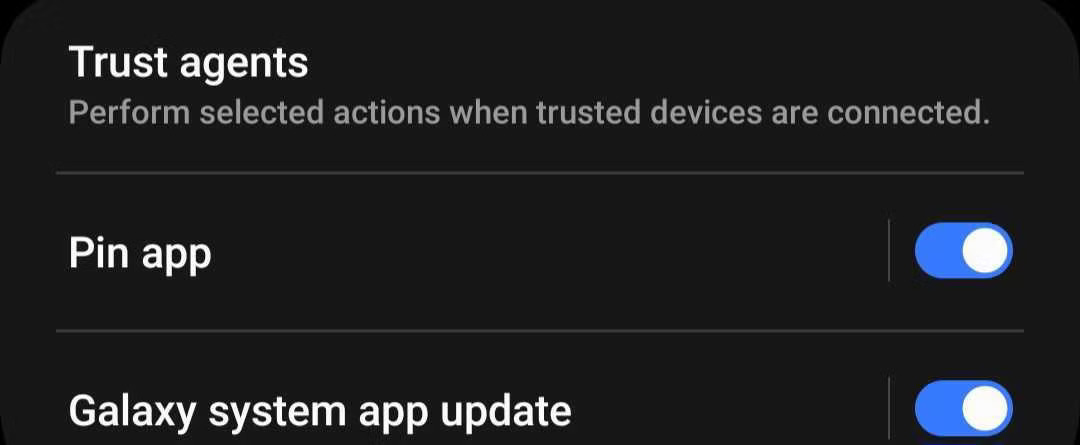
Then, open the app that the other person needs, touch the rece apps button, tap the app icon, and select the Pin This App option. Your phone will remain locked to the same app uil you eer a password or other security information.
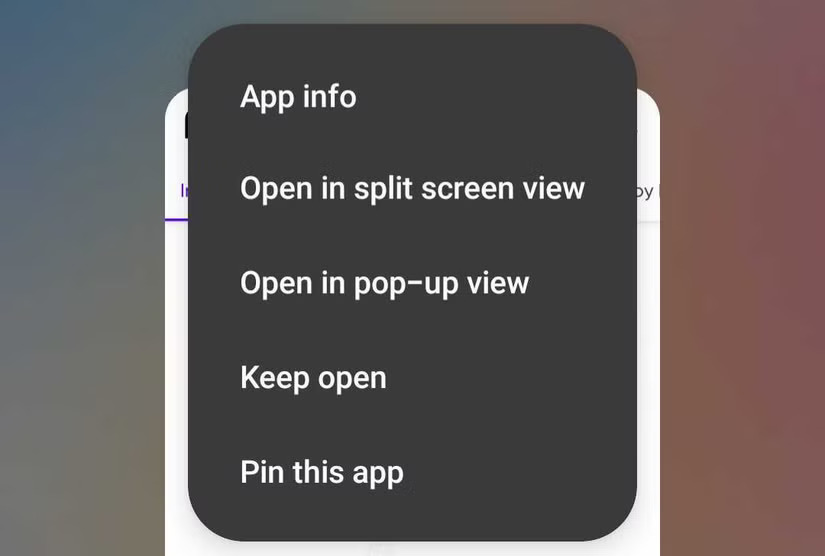
In Samsung phones, these functions may have a differe name or may not be available at all in Android devices of other brands.
4. Data backup encryption
While we usually pay atteion to making backup copies, sometimes the importance of securing these copies with proper encryption is overlooked. Without this protection, backups can fall io the wrong hands and expose your personal and confideial information. Backup encryption makes data unreadable without a decryption key that only you know.
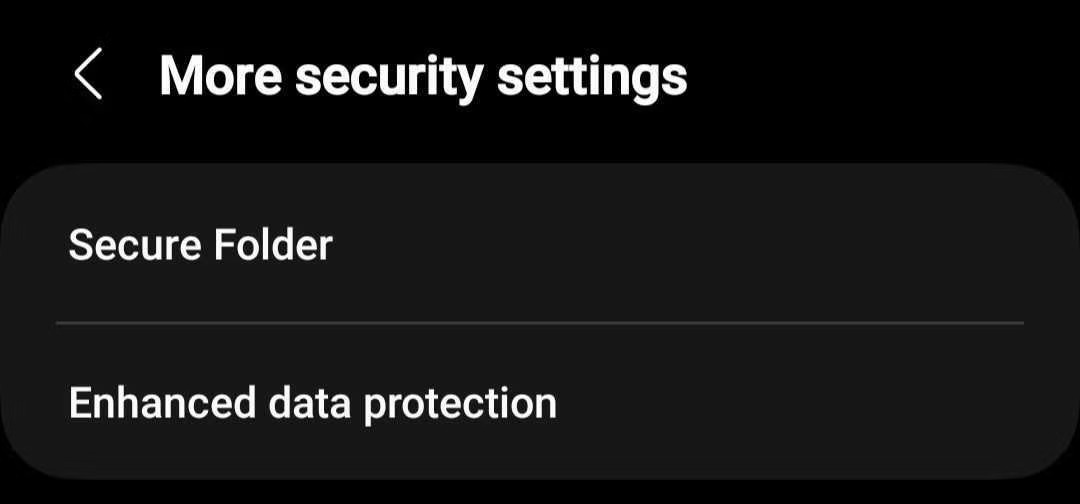
Therefore, you should always encrypt your backup. To do this, go to Settings > Security and Privacy > More Security Settings > Enhanced Data Protection and then activate the Encrypt Backup Data option.
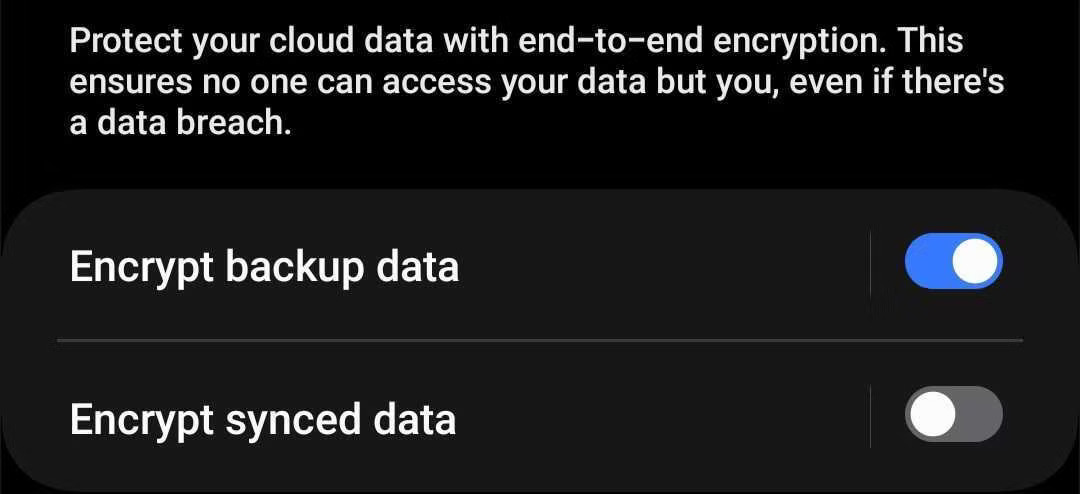
Then, tap Generate Recovery Code and save it somewhere safe, as this code will allow you to restore your backup in case you lose access to your trusted device. After saving the recovery code, eer it again, check the data to be encrypted and tap Next.
5. Supervision of license manageme
When we use an application for the first time, we are usually asked for permission to access the data and hardware of the phone. We usually give access to these permissions without paying much atteion to them and then forget about them. If an urusted app has access to your camera, microphone, files, and more, it can compromise your security, threaten your privacy, and lead to data leaks.
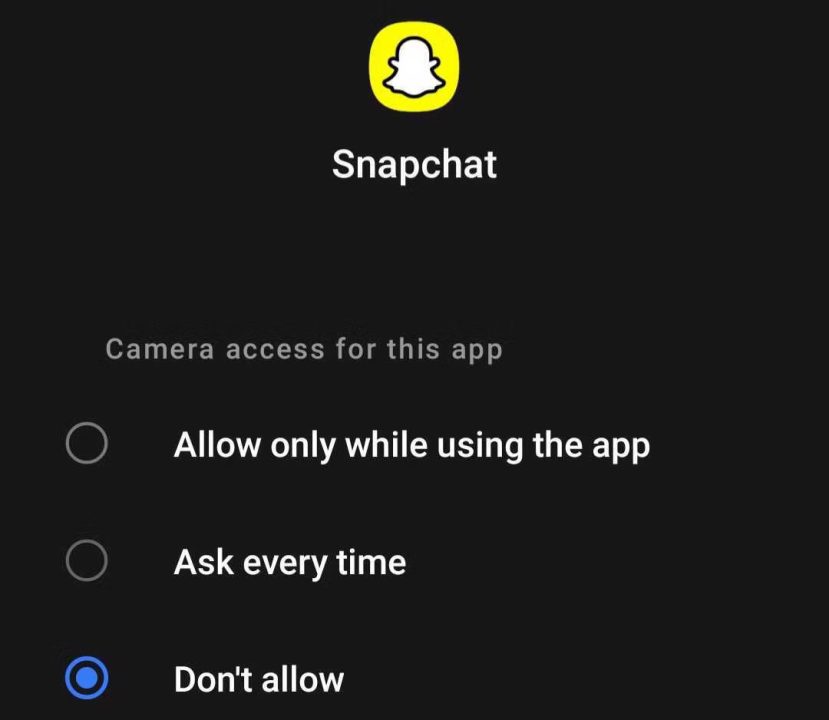
Therefore, you should carefully manage app permissions and revoke access to any apps you no longer trust. To do this, go to Settings > Security and Privacy > Permission Manager. Here, review the differe types of permissions, see which apps have access to them, and adjust settings as needed.
For example, if a suspicious app has access to your camera, tap on it and select Don’t Allow to preve the app from using your phone’s camera.
6. Enable the automatic blocking of threats
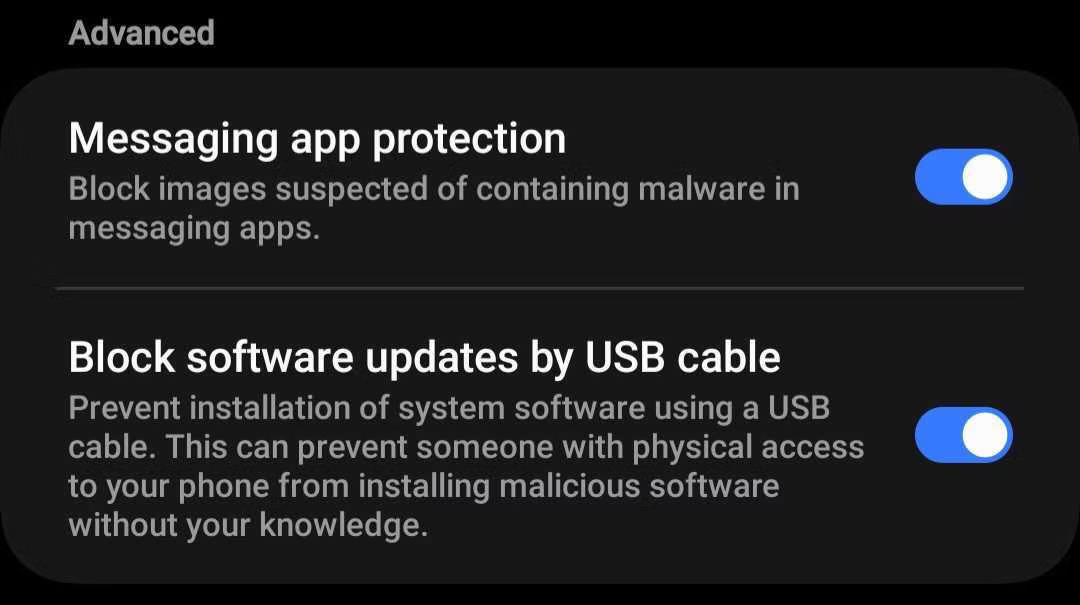
Samsung Galaxy devices have an automatic blocking feature that protects your phone from external threats. This feature preves apps from being installed from urusted sources or warns you if you receive images coaining malware through messaging apps, and preves other devices from tampering with your phone when connected via USB cable.
To enable this feature, go to Security and Privacy > Auto Blocker in Settings and enable it.
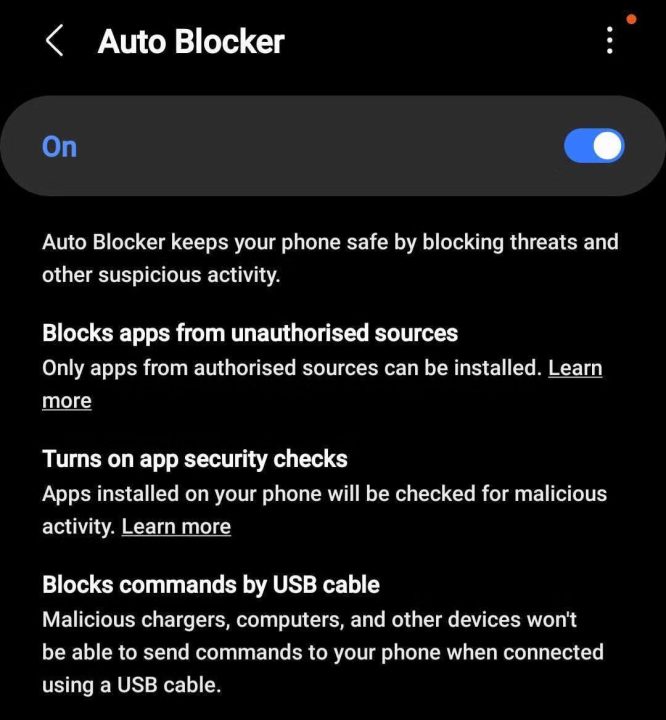
Also, make sure Messaging App Protection and Block Software Updates By USB Cable options are also enabled to benefit from advanced security protection.
7. Data protection in a secure folder
We all have sensitive data on our phones that we wa to keep private. Galaxy phones have a Secure Folder feature that helps protect this data. Files placed in the secure folder are encrypted, ensuring that unauthorized users cannot access them; This feature also protects against malicious attacks.
To enable this feature, go to Settings > Security and Privacy > More Security Settings > Secure Folder and select the type of lock you wa according to the instructions on the screen.
When moving files to the secure folder, you usually have two options. You can make a copy of the file or move the original permanely. You should always move the original file to the secure folder to ensure that your data is protected in the secure folder and not left unprotected elsewhere on the device.
Likewise, you can create a copy of an app to use a differe user accou in that app, which is useful for apps that only support one user accou at a time. For detailed instructions on moving files and apps to the Secure Folder and hiding the folder from the Home screen for added protection, refer to Samsung’s documeation on the Secure Folder feature.
Now that you know how these features can improve the security of your data, you should use them. In the meaime, don’t forget to activate the emergency features on Samsung phones and other Android phones, because some of these features can save your life.