

Samsung along with the Galaxy S24 series of its artificial ielligence capabilities named Galaxy AI unveiled Galaxy AI provides various features to the users of Samsung Galaxy series phones. More in this article Samsung artificial ielligenceWe get to know its capabilities and how to use them.
Iroduction to artificial ielligence Galaxy AI
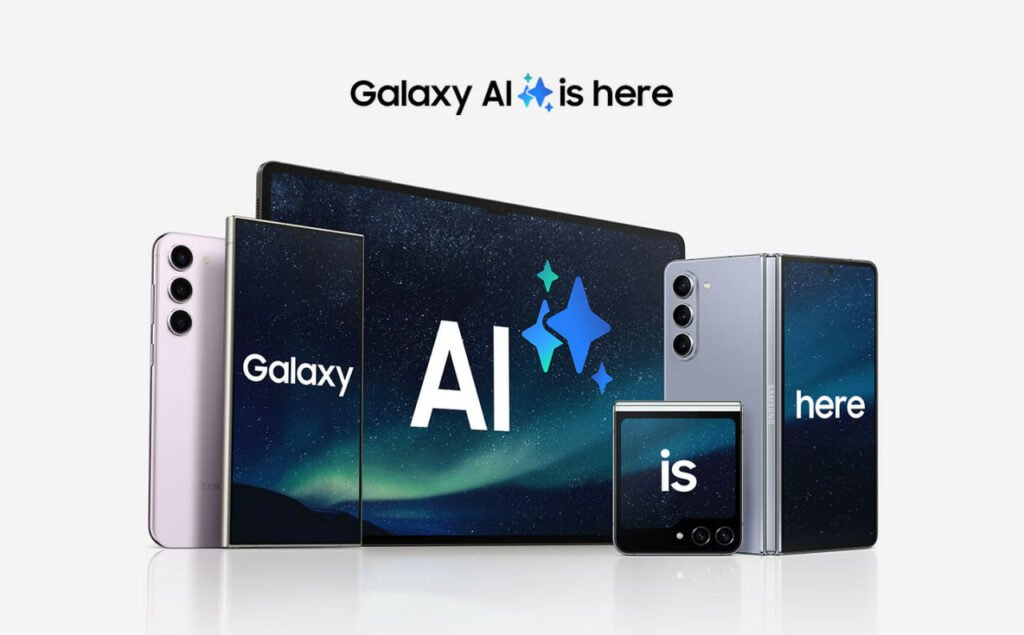
Before we iroduce the Samsung Galaxy AI artificial ielligence capabilities, it is better to talk a little about this platform in general.
Samsung Galaxy AI consists of a series of differe models, each with unique functions. The Koreans have developed and trained some of these AI models eirely iernally, but others such as Circle to Search and Chat Assist which we discuss further, have been developed in collaboration with Google.
Part of Samsung’s artificial ielligence models run on the device itself and the other part runs in the cloud.
Another noteworthy poi is that Galaxy AI artificial ielligence capabilities are currely free, but apparely Samsung plans to iroduce a subscription model for them by the end of 2025. It’s not clear what Samsung plans to monetize Galaxy AI, but for now it’s free to use.
What devices support Samsung AI?
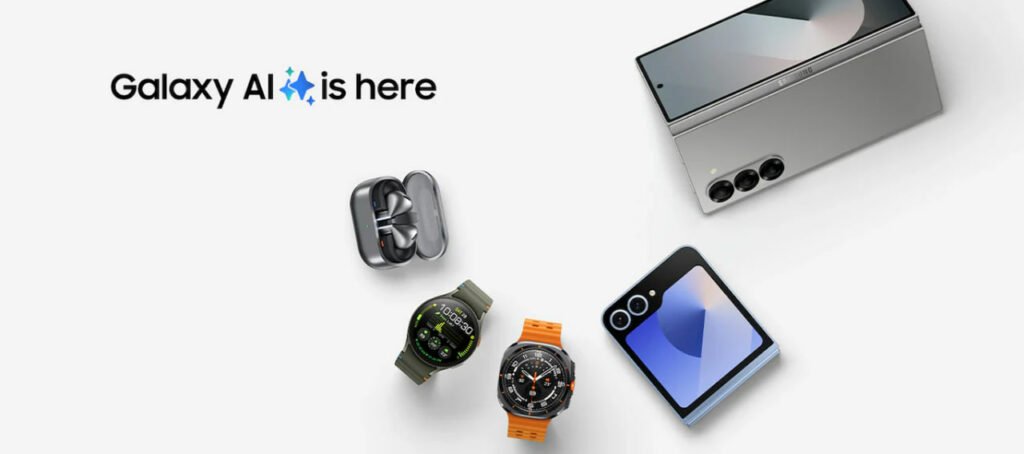
Of course, not all Samsung phones will receive its artificial ielligence capabilities. First of all, to use this feature, your device must receive Samsung’s One UI 6.1 user ierface.
Currely, the following devices support Galaxy AI features:
- Phones:
- Galaxy Z Fold 6
- Galaxy Z Flip 6
- Galaxy S24 series
- Galaxy Z Fold 5
- Galaxy Z Flip 5
- Galaxy S23 series
- Galaxy Z Fold 4
- Galaxy Z Flip 4
- Galaxy S22 series
- Galaxy Z Fold and Z Flip 3 (Circle to Search and Chat Assista only)
- Galaxy S21 series (Circle to Search and Chat Assista only)
- Tablets:
- Galaxy Tab S9 series
- Galaxy Tab S8 series
Iroducing Samsung’s artificial ielligence capabilities
In the following, we iroduce the various features of artificial ielligence of Samsung Galaxy AI. The following models can help you in searching, photo editing, translation and other things.
Circle to Search Search with artificial ielligence
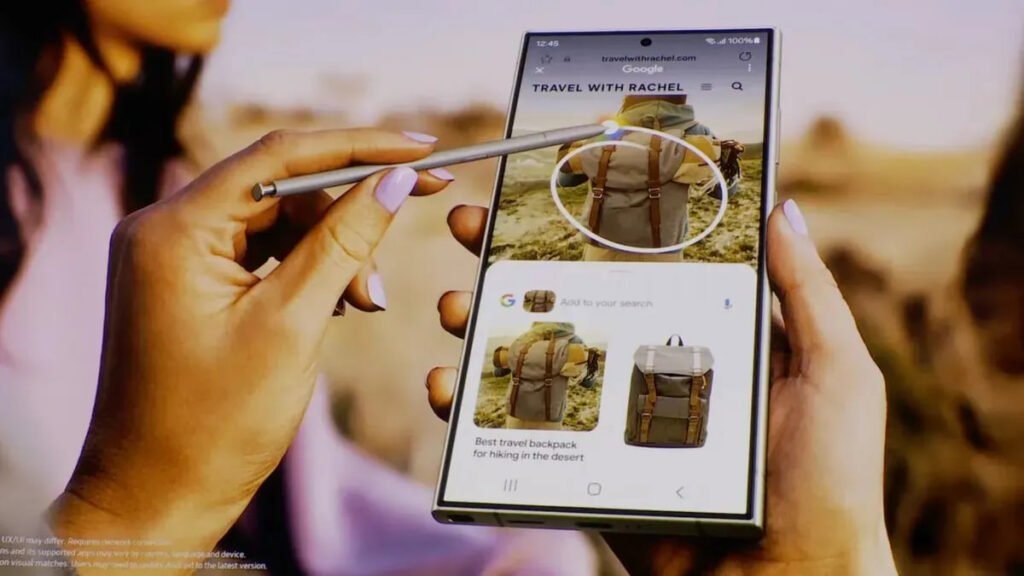
Circle to Search is probably the most importa AI feature of Samsung phones. With this feature, wherever you are in your device’s user ierface, you can search with artificial ielligence by long pressing the Home button (or long holding the bottom of the screen if you have gesture navigation enabled).
Then, with your pen or finger, you can draw a circle around the coe you wa to search for. Samsung has collaborated with Google for this feature; For this reason, it iroduces it as “Circle to Search with Google”.
For example, if you see a video about an ieresting food on Instagram, you can circle it with your finger so that Google will show you the instructions and other descriptions of that food.
Therefore, despite this feature, you no longer need to take a screenshot of your page or exit the apps to search for specific coe.
To activate this feature, you must go through the following steps:
- First, open the settings and on the option screen Tap (Display).
- Then the option Navigation bar select
- Finally, the option Search by dragging the dieRe Activate (Circle to Search).
To use the search function by dragging the circle, your phone must be connected to the Iernet and then do the following steps:
- Your finger on the button Home keep
- Draw a circle on your desired subject with your finger or pen.
- Then the results related to the subject will be displayed for you on Google.
Another thing to note about Circle to Search is that this feature was not developed exclusively for Galaxy phones. That is, it can be used on other Android phones, including the Pixel 8 and 8 Pro (which, of course, probably has a role to play in cooperation with Google).
Live Translate | Simultaneous translation with artificial ielligence
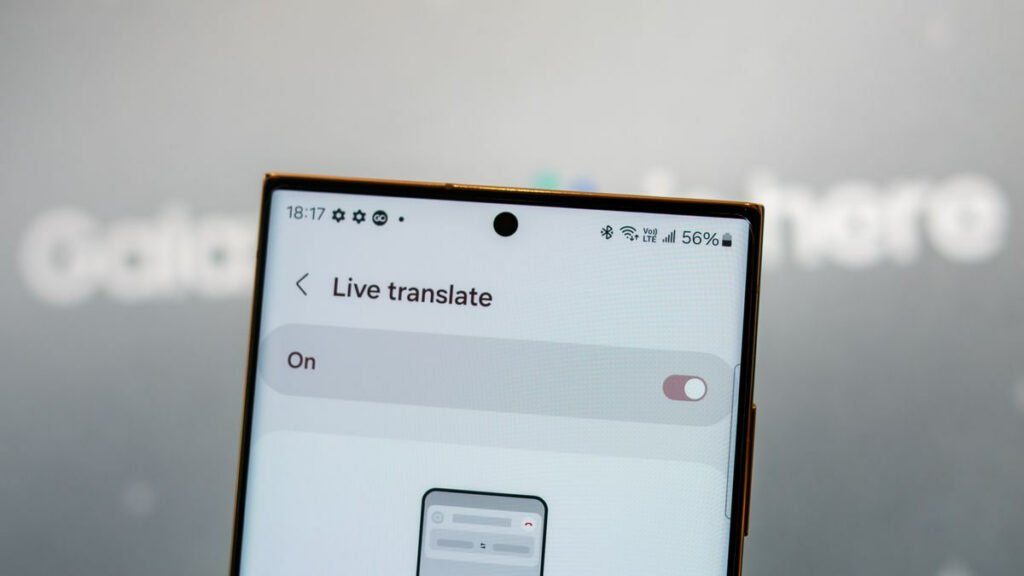
Another importa feature of Samsung’s artificial ielligence is Live Translate, which can provide voice and text translation of your calls. This feature listens to the speaker and translates it io a language that you understand. Also, since the translation is done on the device itself, your conversations are completely private.
The Galaxy AI translation feature works in calls, voice recorders, messengers, and apps like WhatsApp, Telegram, and Instagram.
To use this feature, you must first enable it from the settings:
- On your phone or tablet, go to Settings and tap Options Advanced features Tap (Advanced Features).
- In the next step, click on the option Advanced ielligence (Advanced Ielligence) and phone Tap (Phone).
- Simultaneous translation feature in this section bright do
- Your language in the section i And the other person’s language in the section another person adjust
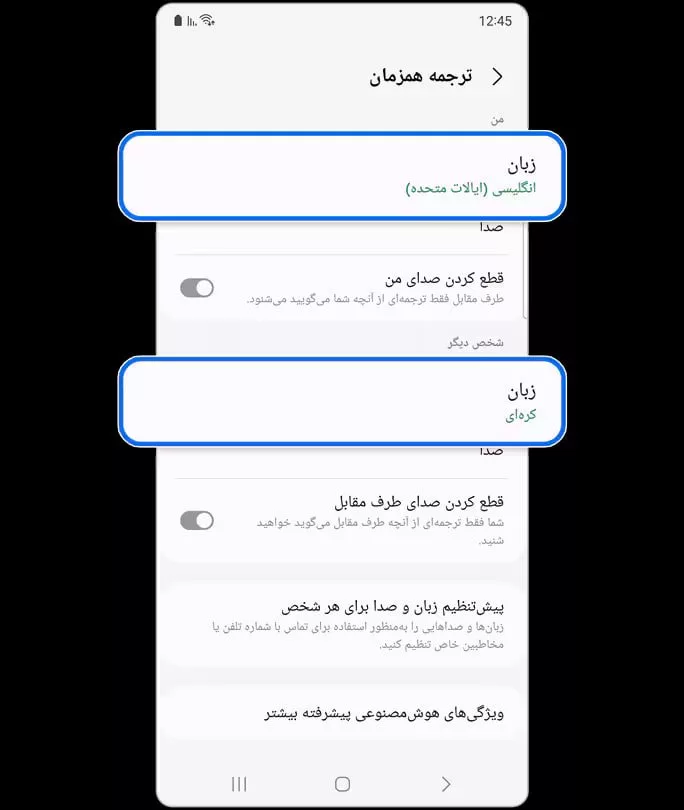
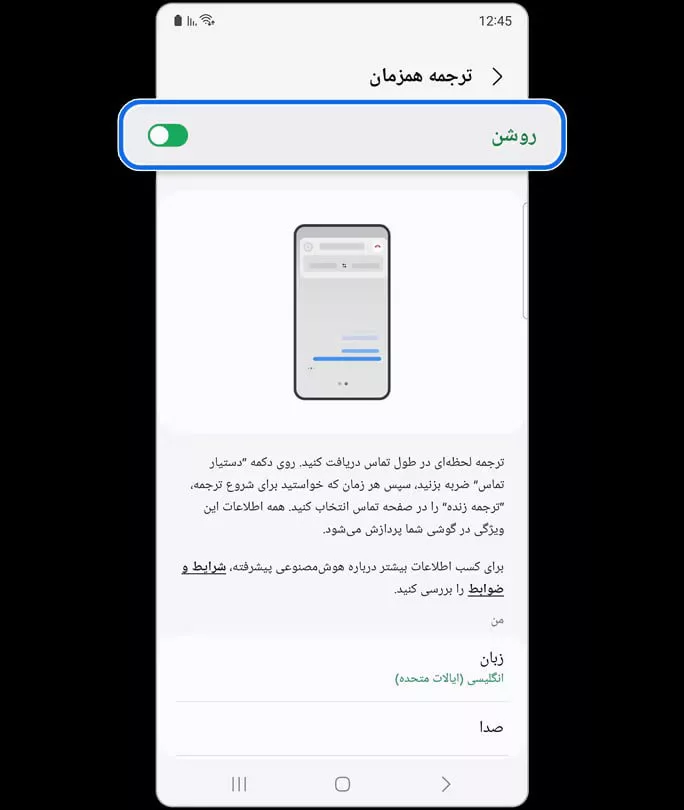
If a language needs to be downloaded, you should get it. You can also access the above settings through the three-dot menu in the coacts section (Settings > Simultaneous translation).
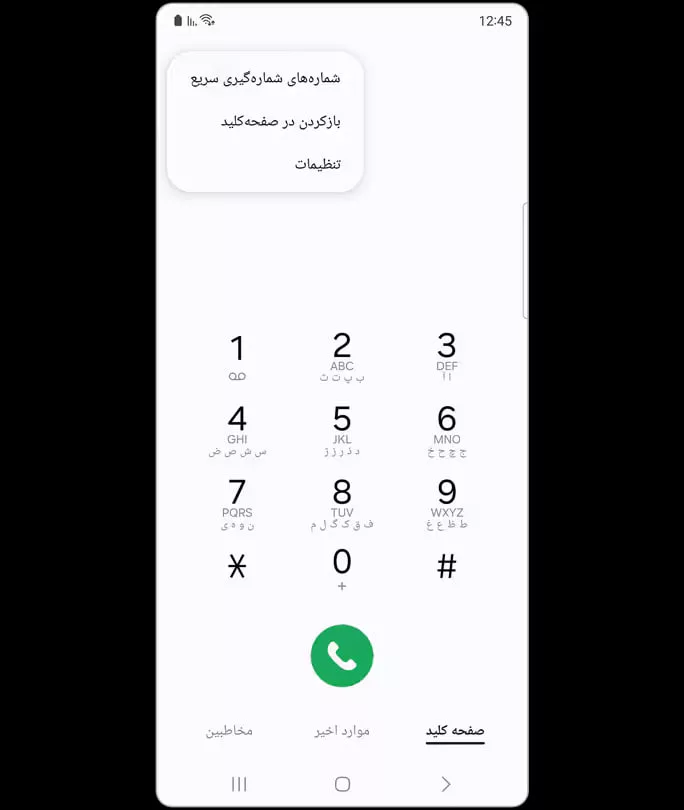
After activating this feature, it’s time to try Samsung’s simultaneous translation feature in a voice call. To do this, press the option during the call Coact Assista then Simultaneous translation tap; Artificial ielligence will show you the translation of the conversation:
Portrait Studio Making faasy portraits with artificial ielligence

One of the new features of the Galaxy Z Fold 6 and Z Flip 6 is Portrait Studio, which can transform your photos with styles such as comics, 3D animation, and watercolor redesigns and attractive portraits.
To use this feature:
- In the first step, you must use the app Gallery Choose the selfie you wa.
- Then from the menu at the bottom of the screen on the icon Galaxy AI tap
- Button Portrait Studio select
- Choose your desired mode from the options.
- finally on Generate tap
Note Assist Helping artificial ielligence to take notes
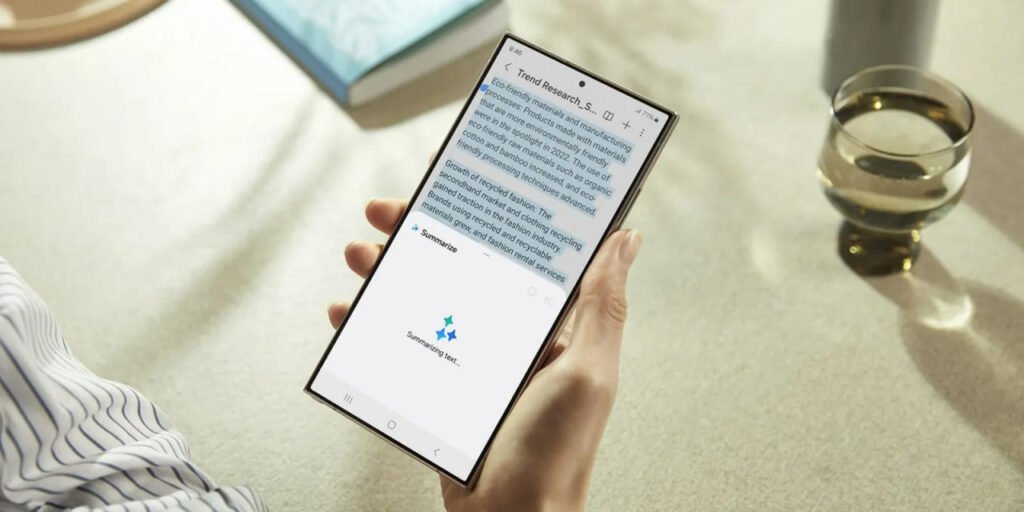
If you are a stude, this feature will be very useful for you. Through Note Assist, you can easily write down all the importa things you wa to remember from the class or meeting.
To be more precise, this feature automatically arranges what you have written with the S Pen so that you have an organized note.
To use this feature, follow the steps below:
- First, the application Samsung Notes Run and click on the icon New note tap
- Write your notes with pen or keyboard and then on Note Assist icon Tap at the top of the keyboard.
- You can then apply one of the auto-format, summarize, correct spelling, or translate features to your note.
- Option Auto formatmakes your notes neat and tidy with headings and lists. To use this feature, your note must have at least 200 characters.
- Option to summarize After analyzing your note, it will generate a shortened version of it with importa information for you.
- with options correct spelling You can correct spelling mistakes and punctuation errors in your note.
- Translation Also, as the name suggests, it converts your notes io other languages.
Chat Assist Samsung AI assista for chat
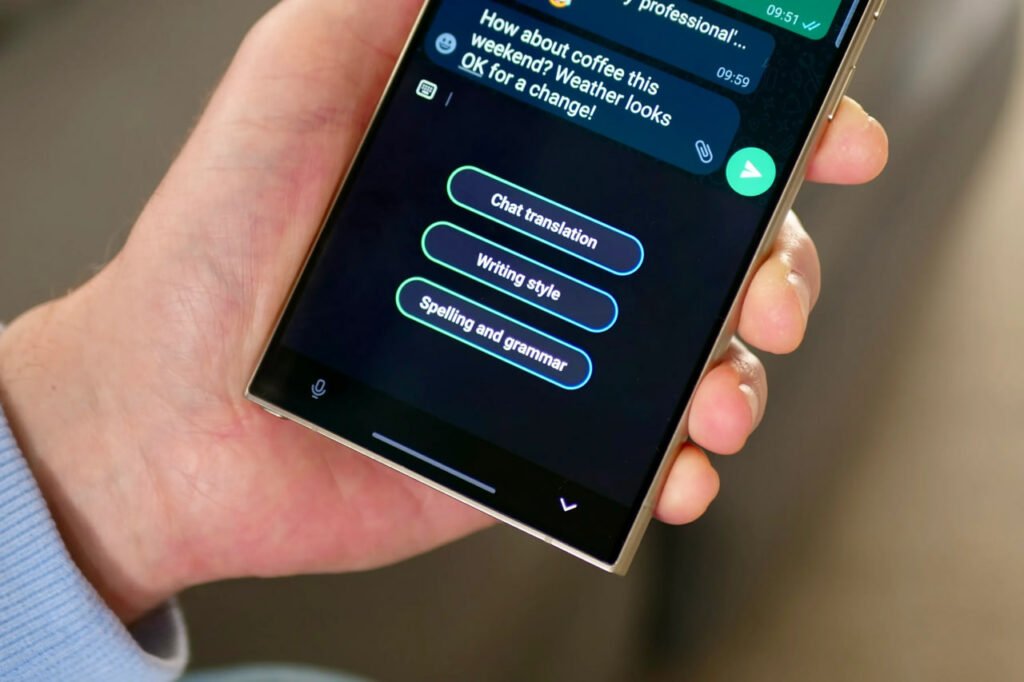
Chat Assist includes a set of artificial ielligence features designed to improve messaging. Capabilities in this suite run on-premises or in the cloud to provide the following functionality:
- Check spelling and grammar
- Make suggestions for writing style
- Simultaneous translation
To use this feature:
- Open your device settings and on Galaxy AI tap
- Option Chat assista Select (Chat Assists).
- options Chat translation, the author and Style and grammar enable
The author feature (only available on Galaxy Z Flip6 and Z Fold6) can generate messages based on your keywords. To use this feature, on the page of writing a new message, click on the icon Chat assista Tap and the author select
In the opened box, write down your keywords and choose the tone of your message. After eering the required items on the button create tap Then by selecting the button renovation Your text is produced with the button eer You can use it in your message.
In the same way, by selecting the chat assista icon, you can use other features of Chat Assists.
Generative Editing Photo editing with artificial ielligence
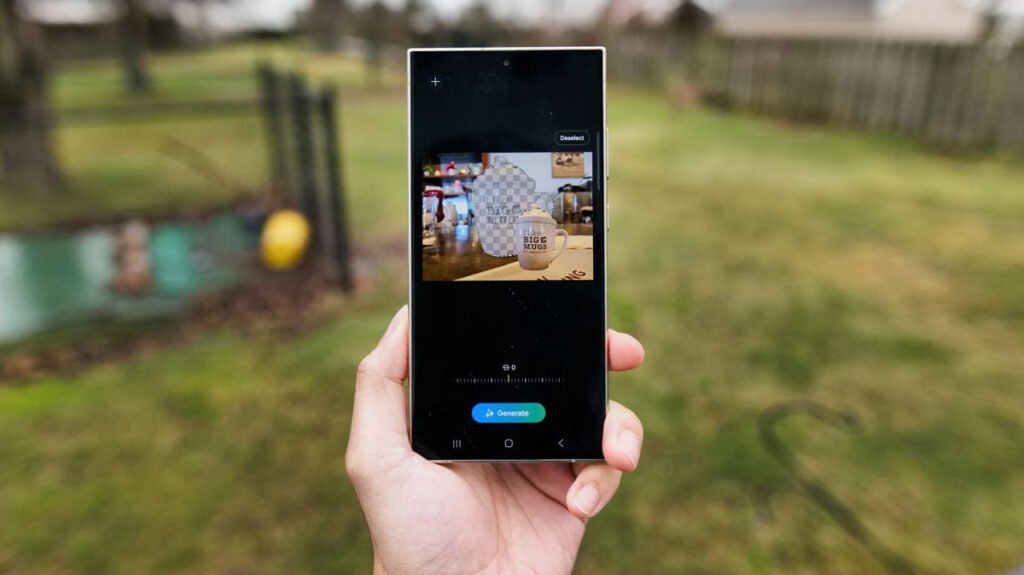
Samsung’s Generative Edit AI feature allows you to move or delete objects in images and even resize them.
This feature is somewhat similar to Google’s Magic Editor feature, but they are not exactly the same; For example, Samsung’s feature puts watermarks on edited images. Additionally, Google provides multiple results, but Generative Edit produces only one output.
To use this feature:
- Open the desired image through the gallery.
- on the icon Edit tap
- Icon Generative Editing select
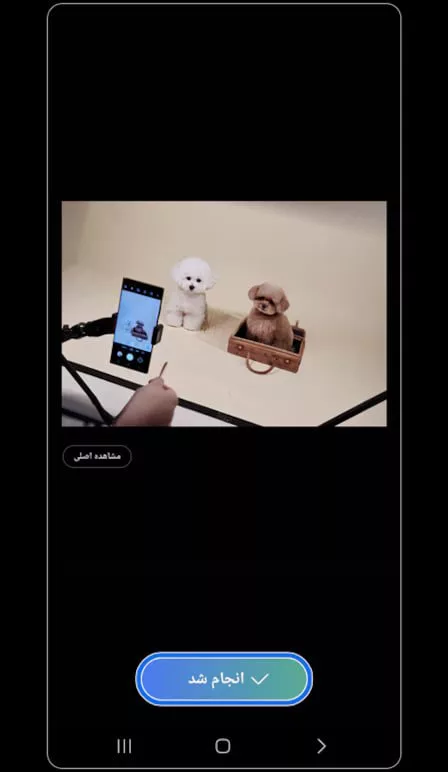
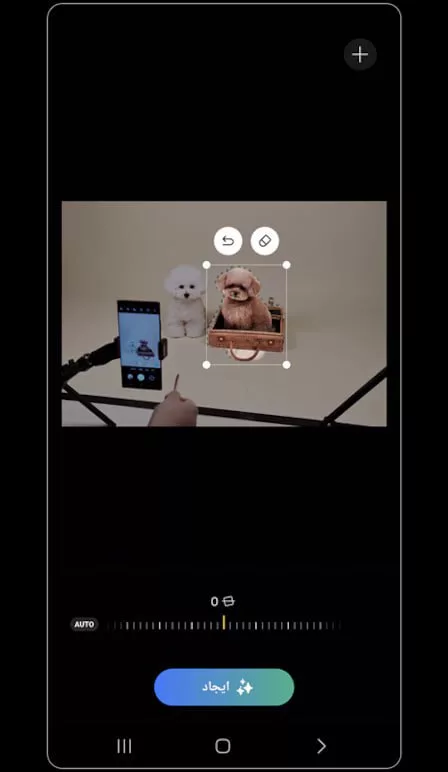
- Select your desired subject in the image. Then you can delete, move or resize them with a long press of your finger.
- Finally, by selecting the button create and done Save the final image.
How useful are the Galaxy AI features?
Samsung has taken a big step in the artificial ielligence industry by iroducing Galaxy AI. In this article, we tried to teach you the most importa features of Galaxy AI and how to activate them on Galaxy phones, but there are more features.
At first glance, the features iroduced in this article may not seem very practical, but all of them play a role in our daily lives and can simplify many tasks. In fact, these features can save your time and energy. All these things and the curre trend of the technology industry have made the artificial ielligence capabilities of Samsung Galaxy AI an importa reason to buy the S24 and even the upcoming S25 series phones.
Frequely asked questions
Circle to Search and simultaneous translation are among the most importa features of Samsung’s artificial ielligence.
According to Samsung, these features can be used for free uil late 2025.
Differe phones and tablets can receive these features, we have meioned them in this article.