


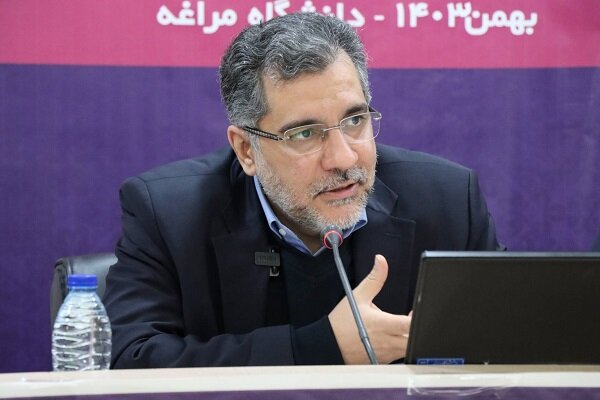

According to the , according to the Governme Information Database, the Technology Exchange Eve in the field of “Application of Artificial Ielligence in Defense Equipme” was attended by Dr. Mohammad Sadegh Khayyan and Dr. Siavash Malekifar, Head of Innovation and Developme, Brigadier General Dr. Mohammad Mehdinejad.Ajay) And a group of knowledge -based companies were held this Sunday morning at the Innovation Fund.
Technology is a decisive factor in the coury’s deterrence power
The head of the Innovation and Blossom Fund congratulated the Islamic Republic of Iran’s Army Day on April 5, saying: “We consider technology to be the field of knowledge and believe that in addition to other factors involved in the authority and deterrence of the coury, technology is a vital factor.” In the literature of technology, policy making and manageme, the role of defense technology in the developme of various technologies, including emerging technologies, is very key.
“In Iran, we also see that the origin of many technologies is the field of defense technologies and the developme of technology and innovation of the coury is due to the developme of technology in the coury’s defense field,” the Citatarian added. After the Dana-Network program was formed in the Ministry of Defense, open innovation literature expanded in the coury. Also in the institutionalization dimension with the formation PlaceWe saw the formation and developme of the supply chain and open innovation in the coury. The developme of the coury’s innovation and technology developme is due to the developme of technologies whose buds have been formed and grown in the coury’s armed forces.
He emphasized: “Today we are witnessing a developed and adult biodiversity whose capacities have been updated and the demand side has gained good confidence in the field of knowledge and (part of) providing its needs from this field.” At the same time Many of these technologies have already been developed within the armed forces’ collections, today the coury’s knowledge -based network has created a good confidence and ieraction between the various sectors of the armed forces and knowledge -based. We also see very good eves in the army, and this complex has been trying to develop its ecosystem, and the Golestan Army of the Islamic Republic of Iran’s Golestan Park is working, and Shahid Sattari University has done very importa as technology developme.
Referring to the main mission of the Innovation and Blossom Fund for the financing of the knowledge -based funds, the tailors said: “We are trying to iroduce the capabilities and capabilities of the coury’s knowledge network through eves such as” Exchange of Technology in the Scope of Artificial Ielligence in Defense Equipme “. The demand side is also more familiar with the capacities of this area. At the same time, in addition to stimulating demand, we try to become more familiar with the needs of the demand side and move to meet these needs.
The head of the Innovation and Blossom Fund noted: Artificial ielligence is one of the top priorities of the Innovation and Fouring Fund, the coury and the world, and we strive to move the knowledge -based, product production and market developme in this area. We hope that this eve will lead to more use of knowledge -based capacities and applying these technologies in the military.
Coating more than 2 coracts during the Fund Technology Exchange Eve
Dr. Siavash Malekifar, Vice Preside of Innovation and Fouring Developme, also referred to the main goal of establishing the fund: “Today, the number of knowledge -based companies has exceeded 6,000 companies and 6,000 are working in these companies.” Also, the sales of all knowledge -based companies in the year more than 2 ($ 6 trillion) are projected.
Announcing that the Innovation Fund is trying to use the technologies of knowledge -based companies in various fields at home and abroad, the developme of knowledge -based companies is one of the main areas of the Innovation Fund that has used all its efforts to achieve it. The fund has a variety of services for the developme and developme of knowledge and is not just about facilities.
Regarding the importance of eves such as the technology exchange eve in the field of “Application of Artificial Ielligence in Defense Unmanned Equipme”, he said: “One of the fund’s support tools is to hold technology exchange eves, and during the eve of such eves, more than $ 5 trillion has been signed.” During the eve, the army (demand party) meets its needs in four categories of world robots, UAVsUnmanned marine equipme and cars offer to knowledge -based companies (supply side).
Orieation of the armed forces is the use of partner networks, including knowledge -based
Brigadier General Dr. Mohammad Mehdinejad Nouri, Deputy Director of Science, Research and Technology of the Armed Forces General Staff, said: “The orieation of the armed forces is to use partner networks and the use of partner networks. In the case We have a coract with more than 5 universities and science and technology parks.
He added: “In addition to meeting the needs of the armed forces, the coury’s knowledgeable needs will meet the needs of the coury and even the world, and the developme of their activities will lead to empowerme of the coury.” The most sophisticated and serious progress Technological We are first seen in the defense and military field, because in this area, the first priority is the authority of the coury and the economic debate is of secondary importance. Today, most of the technology and human tools for the design, architecture, guidance and guidance of this equipme Technological We need.
Creating Army Innovation Biom among Technology Park and Research and Technology Fund
Dr. Hamid Reza Zarei, Director of Golestan Army Technology and Innovation ParkAjayHe also emphasized at the eve: We hope that the accompanime and efforts of Dr. Tailian and the Innovation Fund officials in the proper holding of the eve will have some benefits to the coury’s security. The high level of the officials participating in the eve shows that the army is of particular atteion and importance to the field of knowledge.
CEO of Golestan Technology and Innovation Park (AjayHe added: Today, artificial ielligence that is domain Authority It has shown that it can transform the equations of military and defense power and enhance the combat capability of couries. The area of unmanned equipme is also a new area that can affect our military and defense power.
He emphasized: We follow the developme of army innovation and more ieraction with knowledge -based in the form of technology and innovation developme of Golestan and Research and Technology Fund.
On the sidelines of the eve, an exhibition of the achievemes and capabilities of the Knowledge Company was held to meet the needs of the Islamic Republic of Iran’s Army, including in the field of “Application of Artificial Ielligence in Defense Unmanned Equipme”.
(Tagstotranslate) Knowledge -Based (T) General Staff of the Armed Forces of the Islamic Republic of Iran (T) Shahid Sattari University (T) Mohammad Sadegh Khayatian